In this post you’ll find the steps on how to install the SCCM Reporting services point role.
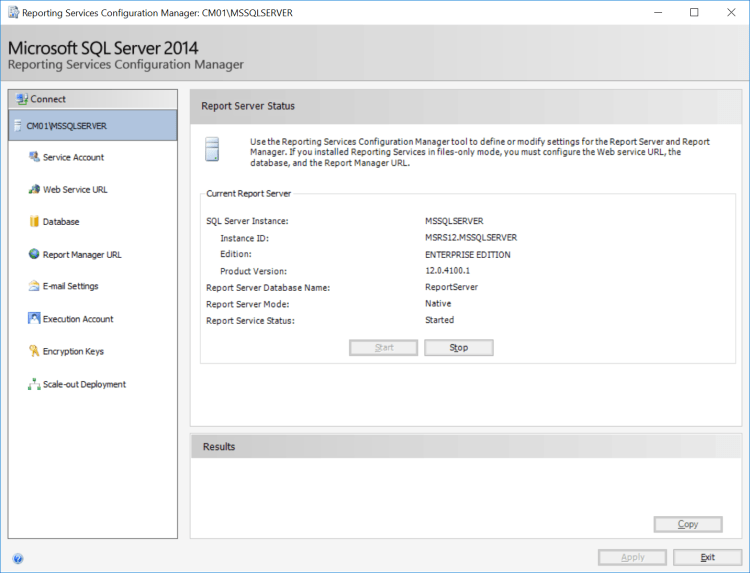
Make sure that SQL Reporting Services is installed and configured in your environment.
Install the role
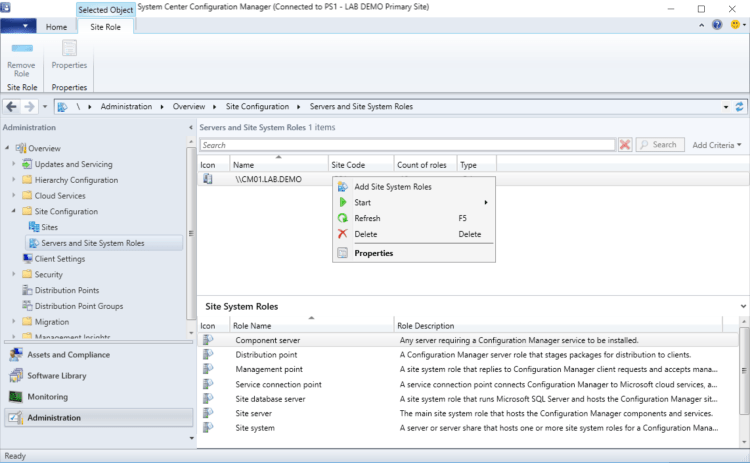
- In the SCCM console go to Administration > Site Configuration > Servers and Site System Roles
- Right click on the server that will host the role
- Select Add Site System Roles
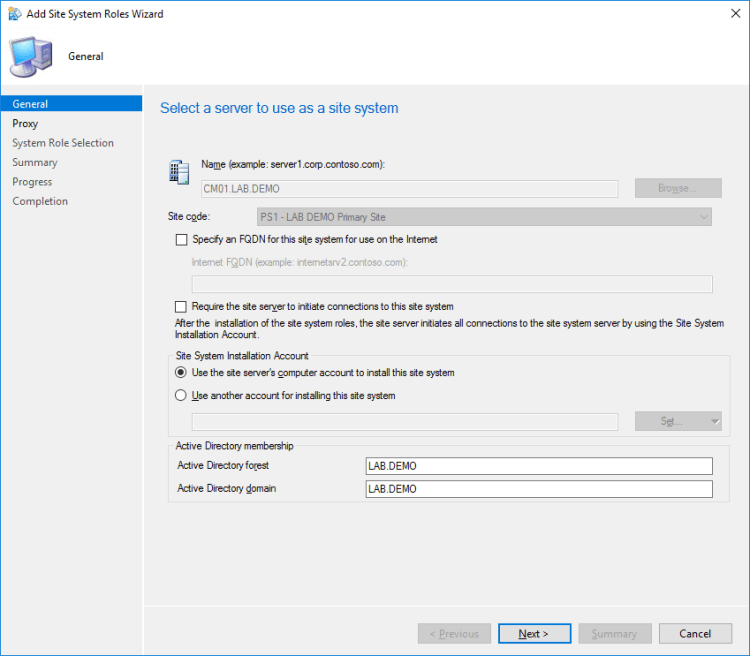
The Add Site System Roles Wizard will appear, make that the correct server is selected then click Next
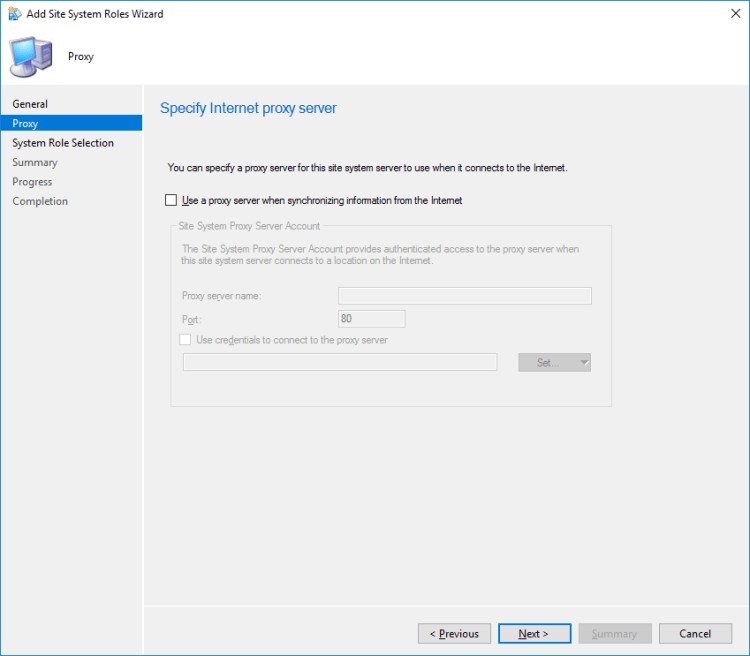
In the Proxy page, click Next
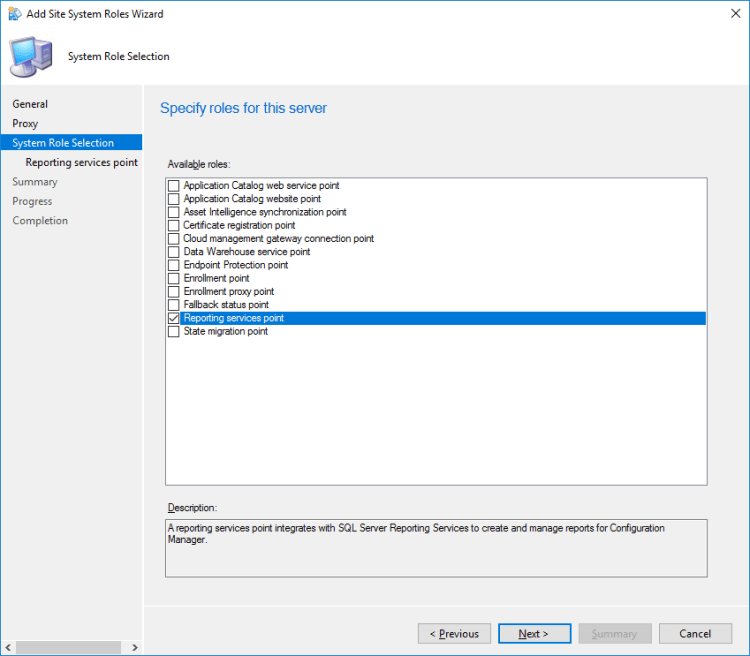
In the System Role Selection, select the Reporting services point then click Next
In the Reporting services point c
- Make sure everything is Site database server and Database name are correct
- Click Verify
- I left the Folder name as is

- In the bottom portion, set an account with access to the SCCM DB to be used for the reporting point.
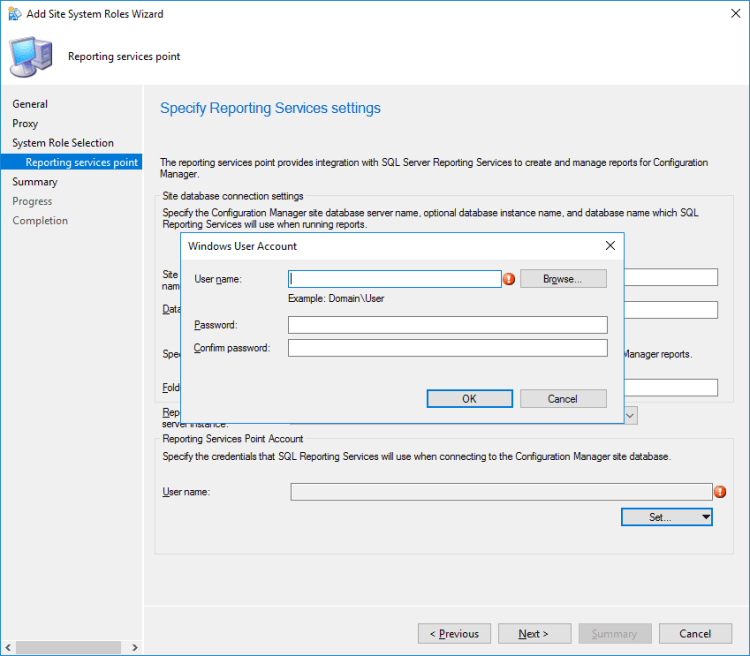
In this example I am using the Administrator account which I granted access to the SCCM database during the setup.
Click Next to continue

In the Summary, review the details and click Next to install the role

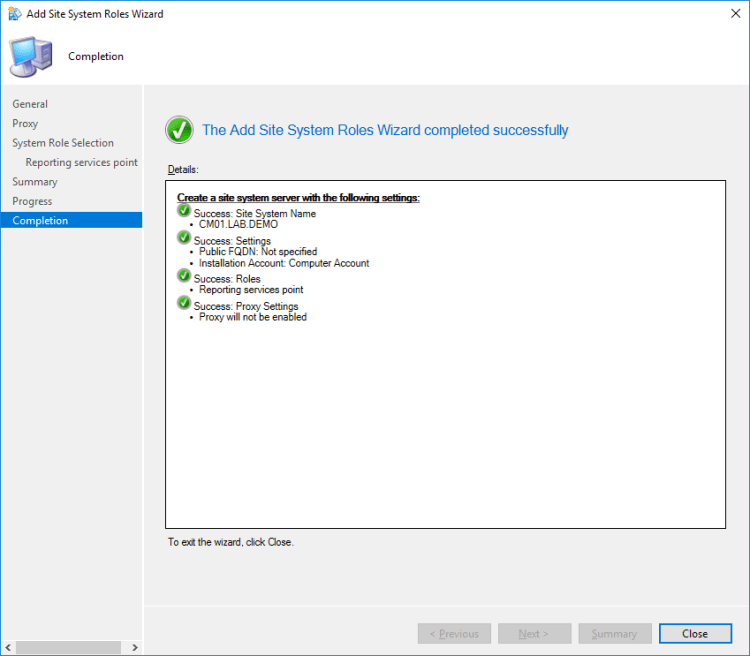
Confirm that the Add Site Roles Wizard completed successfully and click close.
Back in the SCCM Console, go to Monitoring you’ll have links for Report Manager and Report Server
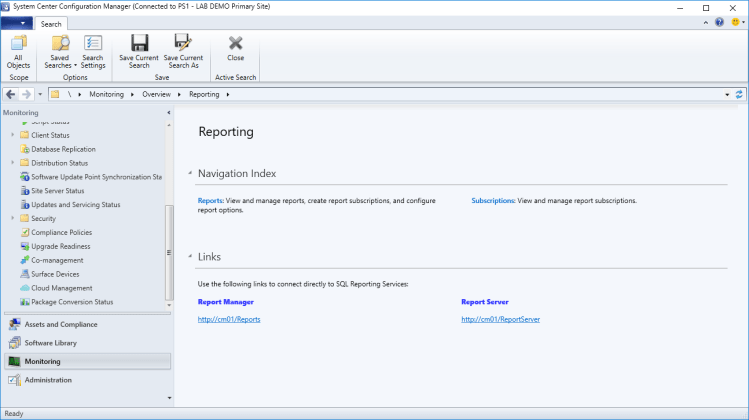
Access the Report Manager through web browser http://yourreportservername/Reports

I hope you find this post helpful, if you’re just starting with SCCM reports or in need of SCCM Reporting RDLs visit SCCM-Zone they have some cool stuff over there.



 LABDEMO
Discussion
No comments yet.