Here how to unblock BGInfo.lnk that you put in the “C:\ProgramData\Microsoft\Windows\Start Menu\Programs\StartUp” folder during your LTI deployment.
- Create a simple PS1 file containing the CGI <file> | Unblock-file command line.
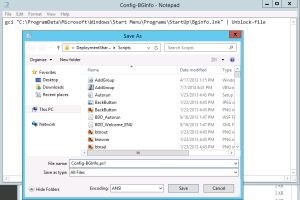
gci “C:\ProgramData\Microsoft\Windows\Start Menu\Programs\StartUp\Bginfo.lnk” | Unblock-file
- In your notepad, copy-paste the command line above and save it as a .ps1 file in the Scripts folder.
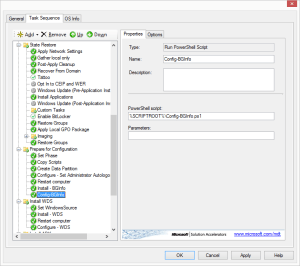
- In your task sequence add a Run PowerShel Script and point to the PS1 script that you have just created.
How to manually unblock and verify:
- This Security Warning pop-up every time you login if you have installed BGInfo and add it to your startup folder.

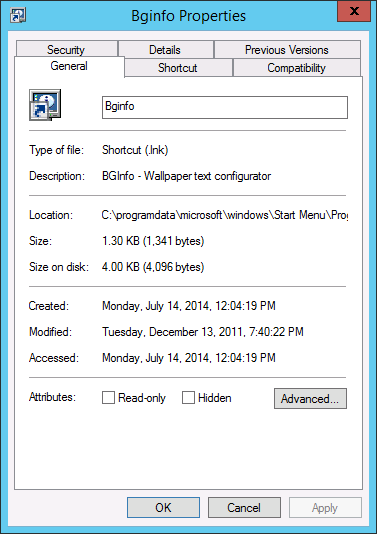
- If you go to and check on the properties > general tab you have to unblock it manually to stop the pop-up.

- This is how to unblock the file in PowerShell.

- After running the command, check the BGinfo.lnk’s properties and verify that the unblock button is gone.



 LABDEMO

Discussion
No comments yet.