Scenario: A client requires their Windows 10 drives C: and D: Encryption Method is XTS-AES 256, fully encrypted and BitLocker Recovery key stored in Active Directory.
The steps below will show how to set it up in the task sequence.
Set Windows 10 Registry Settings
After post OS install create a group called BitLocker Registry Settings, we can’t wait until the GPO pushes down during the OSD so we have to get the following registries into Windows 10.
Set EncryptionMethod
reg.exe add HKLM\SOFTWARE\Policies\Microsoft\FVE /v EncryptionMethod /t REG_DWORD /d 7 /f
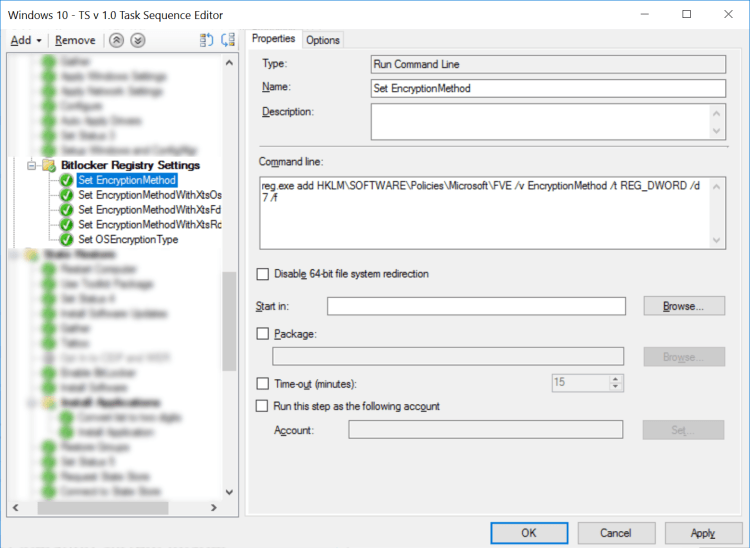
Set EncryptionMethodWithXtsOs
reg.exe add HKLM\SOFTWARE\Policies\Microsoft\FVE /v EncryptionMethodWithXtsOs /t REG_DWORD /d 7 /f

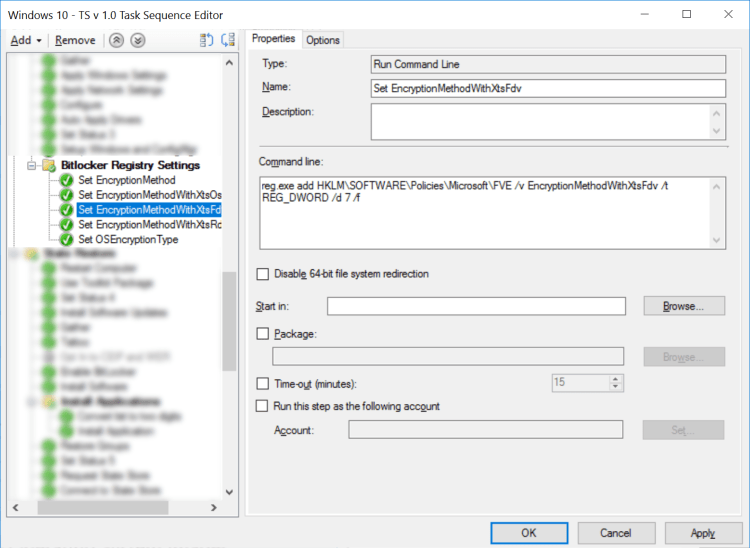
Set EncryptionMethodWithXtsFdv
reg.exe add HKLM\SOFTWARE\Policies\Microsoft\FVE /v EncryptionMethodWithXtsFdv /t REG_DWORD /d 7 /f
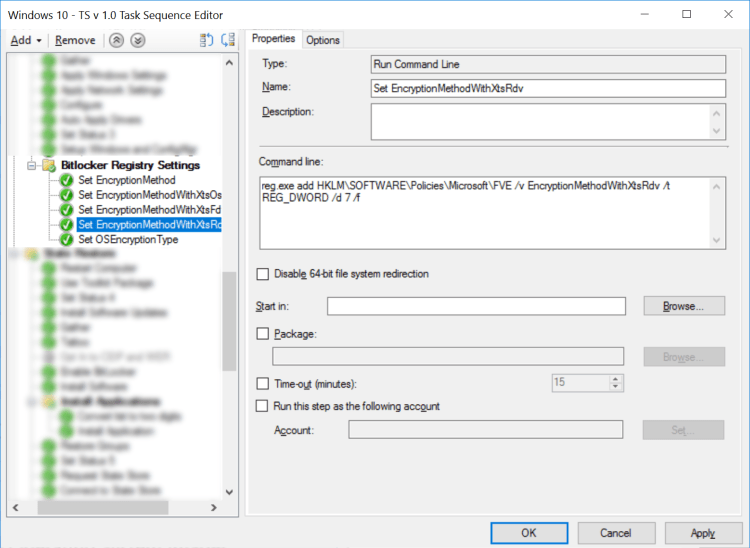
Set EncryptionMethodWithXtsRdv
reg.exe add HKLM\SOFTWARE\Policies\Microsoft\FVE /v EncryptionMethodWithXtsRdv /t REG_DWORD /d 7 /f
Set OSEncryptionType
reg.exe add HKLM\SOFTWARE\Policies\Microsoft\FVE /v OSEncryptionType /t REG_DWORD /d 1 /f

Enabling BitLocker
At the last part of the Task Sequence create a group called Enable BitLocker
Set the TPM and PIN
Set BitLocker PIN
manage-bde -protectors -add C: -TPMAndPIN 1234567890
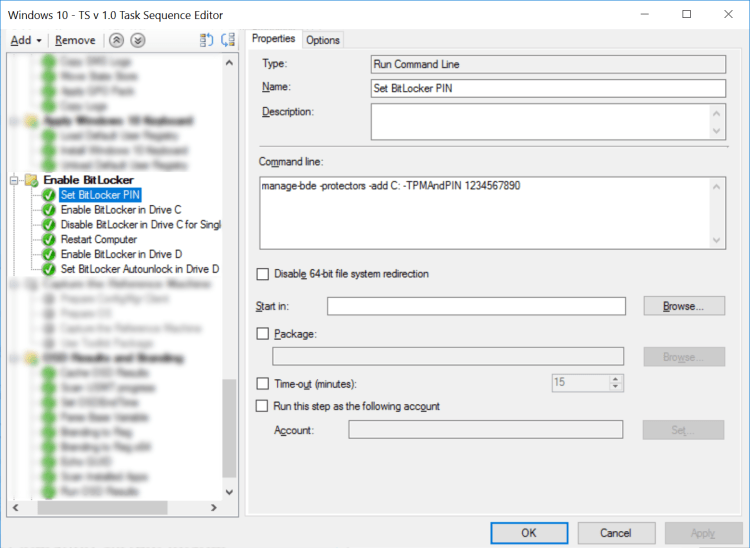
Enabled BitLocker in Drive C:, this should be enabled first, the recovery key will automatically be stored in Active Directory.
Enable BitLocker in Drive C
manage-bde -on C: -rp
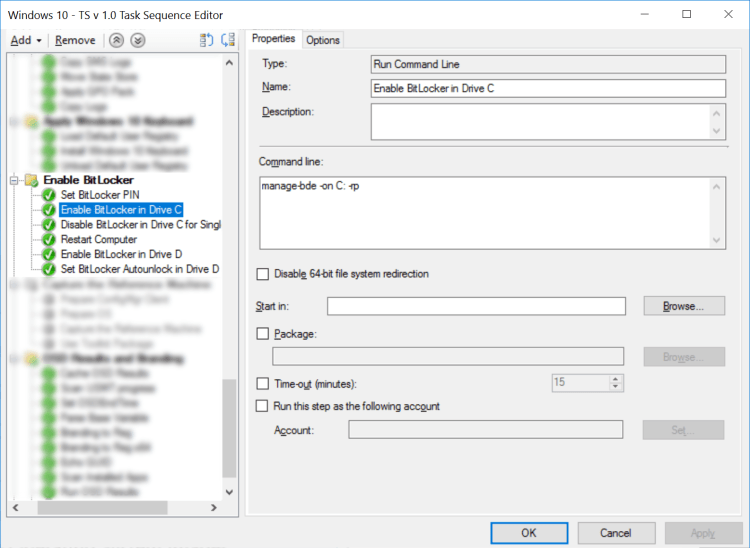
Windows requires a reboot to fully enable BitLocker in drive C:, however to let the ZTI continue without user intervention we’ll disable Windows to ask for a BitLocker PIN just once.
Disable BitLocker in Drive C for Single Reboot
manage-bde -protectors -disable C:
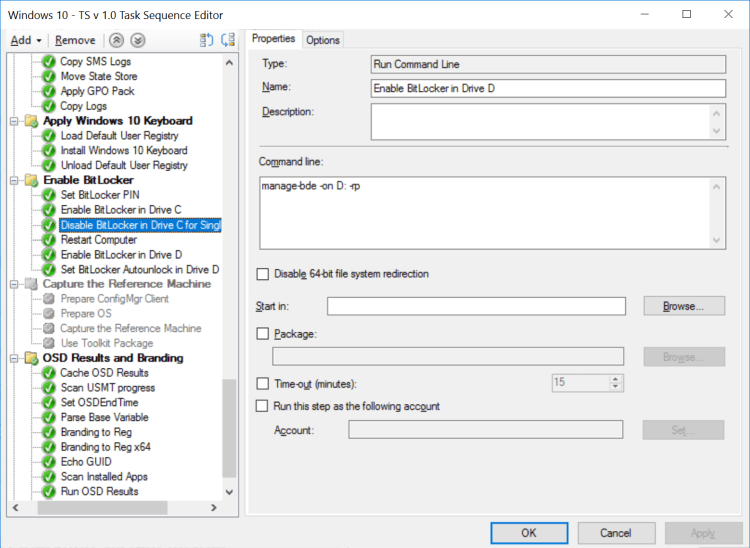
Enable BitLocker in Drive D
manage-bde -on D: -rp
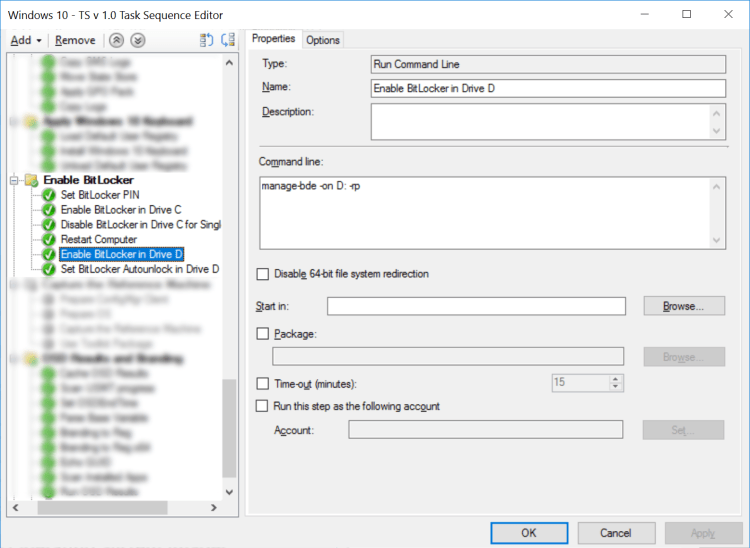
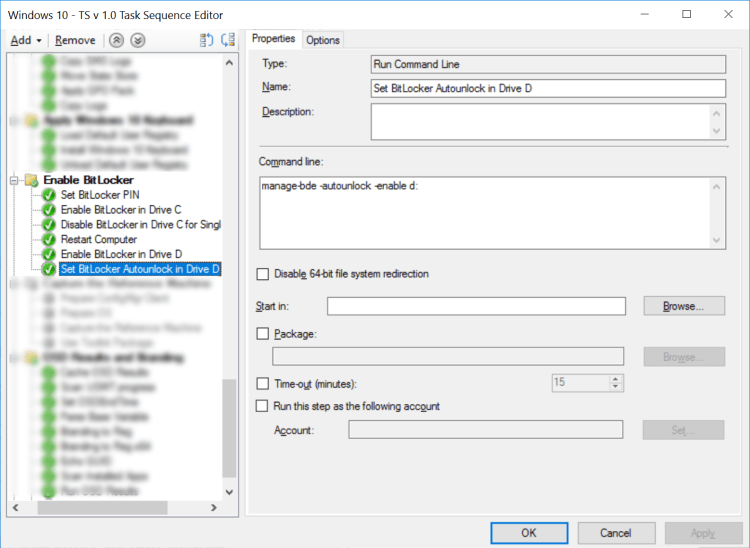
We need to set BitLocker Autounlock in D:, else every time a user access this drive it will be prompt of a key.
Set BitLocker Autounlock in Drive D
manage-bde -autounlock -enable d:
BitLocker verification
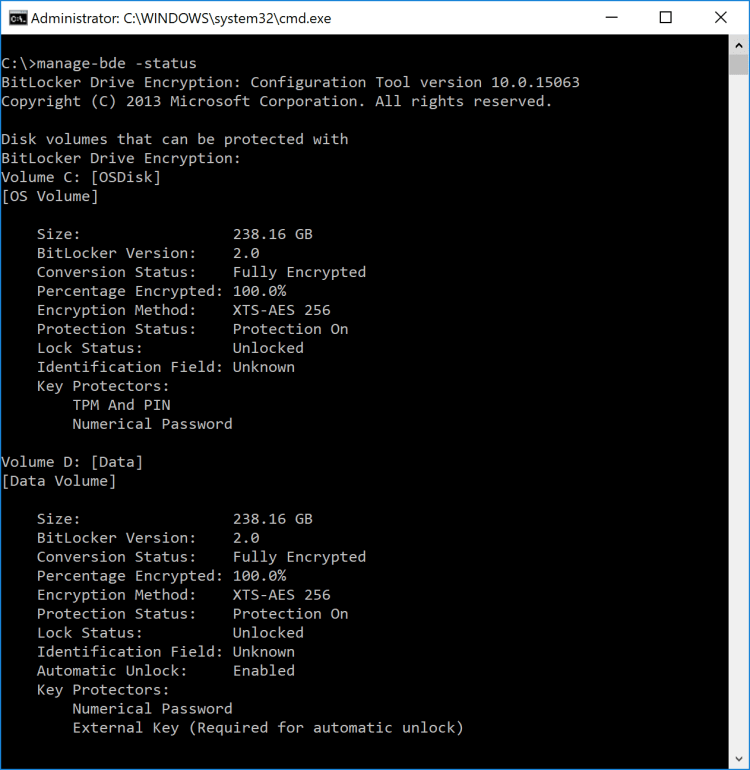
After the OSD is finished, login to Windows and launch the command prompt and type manage-bde -status and verify that the BitLocker settings is applied.



 LABDEMO
As far as I know the HKLM\SOFTWARE\Policies\Microsoft\FVE\EncryptionMethod registry value does not accept “7” but only 1,2,3 or 4.
Posted by Mathieu Ait Azzouzene | November 7, 2019, 6:26 pmMy bad, it appears 7 is an acceptable value
Posted by Mathieu Ait Azzouzene | December 16, 2019, 7:43 pm