Notes from the field:
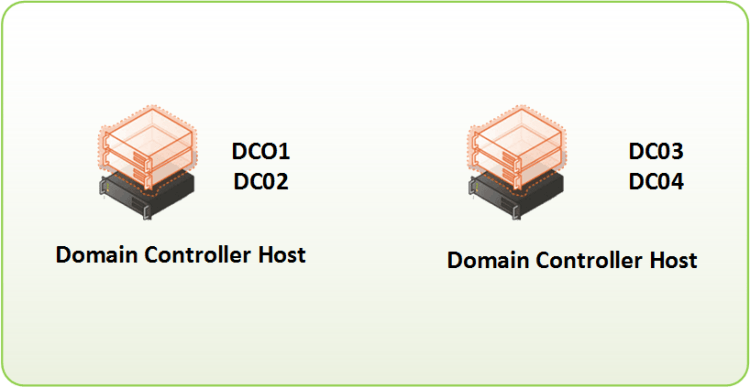
In our projects, as much as I want to automate the deployment my domain controllers from scratch, our team doesn’t own the hosted platform, we come with the VMs already pre-created for us. In this scenario we are deploying a new Domain with the following configurations:
Domain name: Jdeployment
- Single-Forest, Single Domain
- 4 Domain Controllers across 2 sites
- Active Directory will be installed in Drive D:
- Install Remote Server Administration Tools (RSAT)
- Create 2 new Active Directory Sites (Site 1 and Site 2)
- Assign Site1 Subnets to the Site1 Active Directory Site
- Create a new replication site link between Site1 and Site2 and set the replication frequency to every 15 minutes
- Move DC01 to Site1
- Delete the Default Site Link
- Delete the Default IP Site Link
- Configure Windows Time Source (Point to Time Source IP)
- Configure DNS Reverse Lookup
- Enable Active Directory Recycle Bin
Installing the 1st Domain Controller
Add-WindowsFeature AD-Domain-Services, DNS
# Promote DC01 to a Domain Controller #
Install-ADDSForest `
-CreateDnsDelegation:$false `
-DatabasePath “D:\Windows\NTDS” `
-DomainMode “Win2012R2” `
-DomainName “jdeployment.com” `
-DomainNetbiosName “JDEPLOYMENT” `
-ForestMode “Win2012R2” `
-InstallDns:$true `
-LogPath “D:\Windows\NTDS” `
-NoRebootOnCompletion:$false `
-SysvolPath “D:\Windows\SYSVOL” `
-Force:$true
Logging after the reboot and run the post DC Promo script
# Install Remote Server Administration Tools (RSAT) for managing the domain #
Add-WindowsFeature RSAT-AD-PowerShell, RSAT-ADDS-Tools, RSAT-AD-AdminCenter, RSAT-DNS-Server, RSAT-File-Services, RSAT-DFS-Mgmt-Con
# Create a new Active Directory Site – Site1 #
New-ADReplicationSite -Name “Site1” -Description “Site1”
# Create a new Active Directory Site – Site2 #
New-ADReplicationSite -Name “Site2” -Description “Site2”
# Assign GDC2 Subnets to the GDC2 Active Directory Site #
New-ADReplicationSubnet -Name “10.100.0.0/24” -Site “Site1”
# Create a new replication site link between Site1 and Site2 and set the replication frequency to every 15 minutes #
New-ADReplicationSiteLink -Name “SL-Site1-Site2” -SitesIncluded Site1,Site2 -Cost 100 -ReplicationFrequencyInMinutes 15 -InterSiteTransportProtocol IP
# Move DC01 to Site1 #
Move-ADDirectoryServer -Identity DC01 -Site Site1
#Delete the Default Site Link:
Remove-ADReplicationSite -Identity “Default-First-Site-Name” -confirm:$false
# Delete the Default IP Site Link:
Remove-ADReplicationSiteLink “DEFAULTIPSITELINK” -confirm:$false
# Create the OU Structure — Option, Add as required #
New-ADOrganizationalUnit -Name “JDEPLOYMENT”-Path “DC=JDEPLOYMENT, DC=COM” -ProtectedFromAccidentalDeletion $true
#Configure Windows Time Source:
W32tm.exe /config /manualpeerlist:”10.10.0.10” /syncfromflags:manual /reliable:YES /update
W32tm.exe /config /update
Restart-Service w32time
# Configure DNS Reverse Lookup #
Add-DnsServerPrimaryZone -DynamicUpdate Secure -NetworkId ‘10.100.0.0/24’ -ReplicationScope Domain
# Enable Active Directory Recycle Bin #
Enable-ADOptionalFeature -Identity ‘CN=Recycle Bin Feature,CN=Optional Features,CN=Directory Service,CN=Windows NT,CN=Services,CN=Configuration,dc=jdeployment,dc=com’ -Scope ForestOrConfigurationSet -Target ‘jdeployment.com’
Installing the 2nd Domain Controller
# Install AD DS and AD DNS #
Add-WindowsFeature AD-Domain-Services, DNS
# Promote DC02 to a Domain Controller #
Import-Module ADDSDeployment
Install-ADDSDomainController `
-NoGlobalCatalog:$false `
-CreateDnsDelegation:$false `
-Credential (Get-Credential) `
-CriticalReplicationOnly:$false `
-DatabasePath “D:\Windows\NTDS” `
-DomainName “jdeployment.com” `
-InstallDns:$true `
-LogPath “D:\Windows\NTDS” `
-NoRebootOnCompletion:$false `
-ReplicationSourceDC “DC01.jdeployment.com” `
-SiteName “Site1” `
-SysvolPath “D:\Windows\SYSVOL” `
-Force:$true
Login after the reboot and run the post DC Promo script
# Install Remote Server Administration Tools (RSAT) for managing the domain #
Add-WindowsFeature RSAT-AD-PowerShell, RSAT-ADDS-Tools, RSAT-AD-AdminCenter, RSAT-DNS-Server, RSAT-File-Services, RSAT-DFS-Mgmt-Con
Installing the 3rd & 4th Domain Controller
# Install AD DS and AD DNS #
Add-WindowsFeature AD-Domain-Services, DNS
# Promote DC02 to a Domain Controller #
Import-Module ADDSDeployment
Install-ADDSDomainController `
-NoGlobalCatalog:$false `
-CreateDnsDelegation:$false `
-Credential (Get-Credential) `
-CriticalReplicationOnly:$false `
-DatabasePath “D:\Windows\NTDS” `
-DomainName “jdeployment.com” `
-InstallDns:$true `
-LogPath “D:\Windows\NTDS” `
-NoRebootOnCompletion:$false `
-ReplicationSourceDC “DC01.jdeployment.com” `
-SiteName “Site2” `
-SysvolPath “D:\Windows\SYSVOL” `
-Force:$true
Login after the reboot and run the post DC Promo script
# Install Remote Server Administration Tools (RSAT) for managing the domain #
Add-WindowsFeature RSAT-AD-PowerShell, RSAT-ADDS-Tools, RSAT-AD-AdminCenter, RSAT-DNS-Server, RSAT-File-Services, RSAT-DFS-Mgmt-Con



 LABDEMO
Discussion
Trackbacks/Pingbacks
Pingback: Infrastructure as Code – Deploy Active Directory in Azure – IT Labs & Documentations - December 23, 2020