
Building a Private Multi-Model AI Router on a Dell Pro Precision with GB10
A step-by-step guide to turning a desk-side Grace Blackwell box into a private, four-tier AI assistant — chat, code, reasoning, vision, and document reading — that a whole team can share, with nothing ever leaving your network.

Most people run one local model and call it a day. But no single model is the best choice for every job within a sane speed and memory budget: big models reason beautifully but are slow, small models are fast but limited, coders shine on code and waste their talent on small talk, and vision is a separate model entirely.
The fix is a model router — one endpoint and a thin layer that reads each prompt and sends it to the right local model. The Dell Pro Precision with GB10 (formerly known as the Dell Pro Max with GB10) is a near-perfect host for it: a Grace Blackwell desktop with 128 GB of unified memory, enough to keep several models resident at once, sitting quietly under your desk instead of in someone else’s cloud.
This guide takes a freshly set-up GB10 and ends with a private assistant you reach from any browser on your network.
Requirements
Hardware – Dell Pro Precision with GB10 (NVIDIA GB10 Grace Blackwell, 128 GB unified memory). – ~150 GB free disk for the four models below.
Software – DGX OS (the Ubuntu-based image the GB10 ships with). – Ollama — serves all the language/vision models. – Python 3.10+ and pip. – The router project (local-llm-router — FastAPI app + built-in web UI). Grab it from GitHub or as a zip.
Network – LAN access (or a private mesh like Tailscale) so other devices can reach the box. Keep it off the public internet — the router has no built-in authentication.
A GB10 design note that drives every model choice: on unified-memory hardware, memory bandwidth — not capacity — is the bottleneck. You can load a 120B model, but a dense model that size generates slowly. The trick is Mixture-of-Experts (MoE) models, which have many total parameters but only activate a few billion per token, so they stay fast. You’ll see that reflected in the coder tier below.
The models, and what each is for
Four tiers, all served by Ollama:
| Tier | Model | What it handles | Why this one |
| fast | llama3.2 | greetings, quick facts, light edits — and routing | tiny + instant; doubles as the classifier |
| coder | qwen3.6:35b-a3b | code, debugging, refactoring, shell, SQL, config | MoE — only ~3B active params/token, so it’s fast on the GB10 |
| brain | gpt-oss:120b | reasoning, analysis, planning, math, long-form writing | the heavyweight; the GB10’s 128 GB makes it possible |
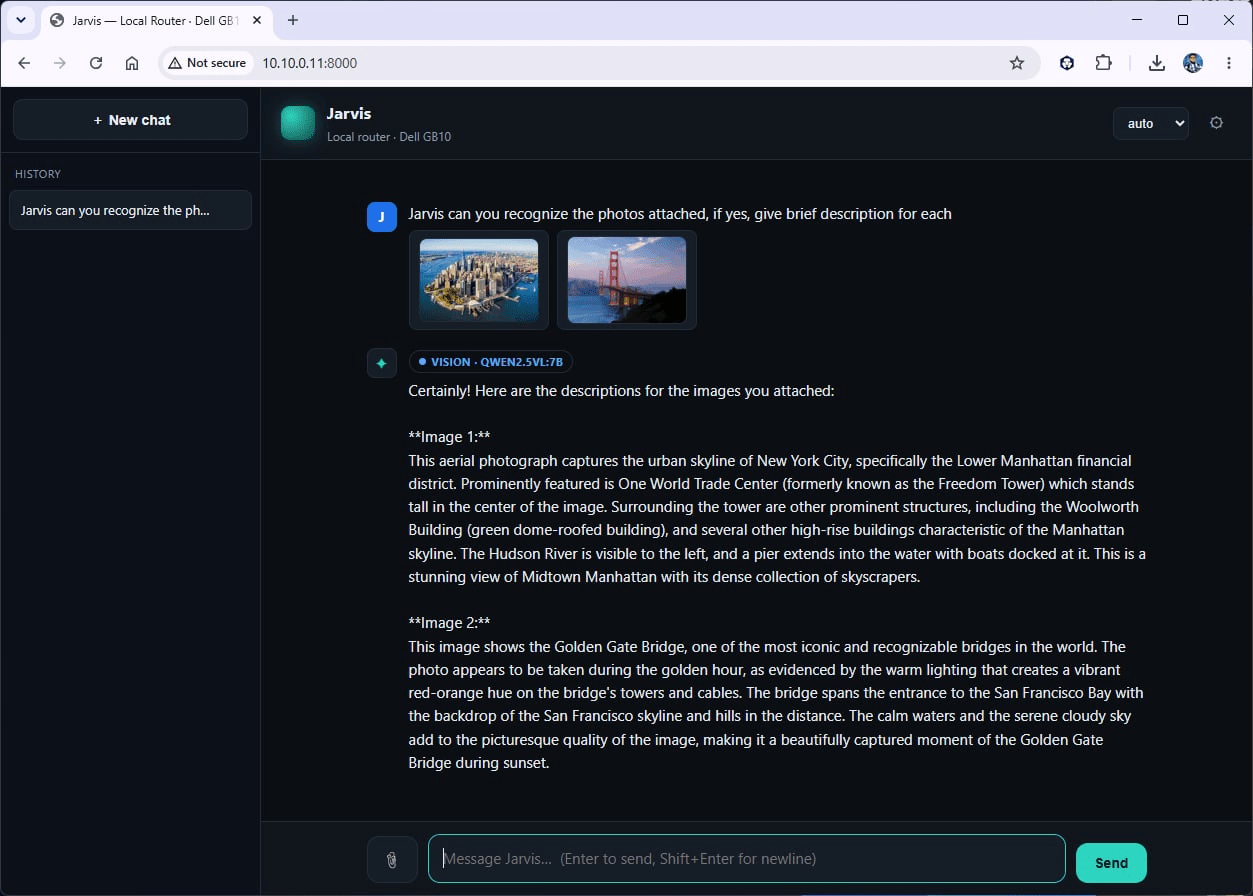
| vision | qwen2.5vl:7b | images, screenshots, charts, diagrams, document photos | strong document/chart understanding; small and quick |
On smaller machines, swap gpt-oss:120b → gpt-oss:20b and qwen3.6:35b-a3b → qwen2.5-coder:7b. Only one config file changes.
Step-by-step setup (from a fresh GB10)
1. Update the base system
Open a terminal on the GB10 (or SSH in) and bring it current:
sudo apt update && sudo apt upgrade -y
2. Install Ollama
If it isn’t already on the box:
curl -fsSL https://ollama.com/install.sh | sh
ollama –version # confirm it’s installed
3. Pull the four models
ollama pull llama3.2
ollama pull qwen3.6:35b-a3b
ollama pull gpt-oss:120b
ollama pull qwen2.5vl:7b
The 120B is ~65 GB, so this download takes a while. Confirm when done:
ollama list
4. Tune Ollama for a multi-model, multi-user box
By default Ollama unloads idle models and serializes requests. For a responsive, shareable setup, keep models warm and allow parallel requests:
sudo systemctl edit ollama
Add under [Service]:
Environment=”OLLAMA_MAX_LOADED_MODELS=3″
Environment=”OLLAMA_KEEP_ALIVE=-1″
Environment=”OLLAMA_NUM_PARALLEL=2″
Then restart:
sudo systemctl restart ollama
(KEEP_ALIVE=-1 pins models in memory; if you later need headroom, drop it to 30m.)
5. Get the router and install dependencies
Clone the repo (or unzip the package) into your home directory:
git clone https://github.com/<your-username>/local-llm-router.git
cd local-llm-router
pip install -r requirements.txt –break-system-packages
The dependencies include FastAPI/uvicorn (the router) plus the document readers (python-docx, openpyxl, python-pptx, pypdf).
6. Point the config at your models
Open config.yaml and make sure each tier’s model: matches the names from ollama list:
routes:
fast:
base_url: http://127.0.0.1:11434/v1
model: llama3.2
description: Quick replies, simple facts, greetings, light rewrites. Also the classifier.
coder:
base_url: http://127.0.0.1:11434/v1
model: qwen3.6:35b-a3b
description: Code, debugging, refactoring, shell, SQL, config, stack traces.
brain:
base_url: http://127.0.0.1:11434/v1
model: gpt-oss:120b
description: Hard reasoning, analysis, planning, math, long-form writing.
vision:
base_url: http://127.0.0.1:11434/v1
model: qwen2.5vl:7b
description: Images, screenshots, charts, diagrams. Auto-selected when an image is attached.
router:
classifier_route: fast
default_route: brain
auto_model_names: [auto, chatbot]
category_map:
simple: fast
code: coder
reasoning: brain
7. Run it
chmod +x start.sh
./start.sh
Open http://<your-gb10-ip> :8000 in a browser. You’ll get a chat UI with a tier selector — pick auto and the router decides where each message goes.
8. Make it an always-on appliance
So it survives reboots, install it as a service. Create the unit file router.service (edit User= and WorkingDirectory= to match your box):
[Unit]
Description=Local model router
After=network-online.target ollama.service
Wants=network-online.target
[Service]
Type=simple
User=YOUR_USERNAME
WorkingDirectory=/home/YOUR_USERNAME/local-llm-router
ExecStart=/usr/bin/python3 -m uvicorn router:app –host 0.0.0.0 –port 8000
Restart=on-failure
RestartSec=3
[Install]
WantedBy=multi-user.target
Then install, enable, and start it:
sudo cp router.service /etc/systemd/system/router.service
sudo systemctl daemon-reload
sudo systemctl enable –now router
journalctl -u router -f # live logs
Now the whole stack comes up automatically on boot. Power on the GB10, and a private AI assistant is just there on your network.
Testing each capability
Routing — does it pick the right model?
From a second terminal:
python3 test_client.py
You should see each prompt land on the expected tier — a greeting on fast, a “fix this code” on coder, a “walk me through a plan” on brain. Every response carries X-Router-Tier / X-Router-Model headers, and the web UI shows a colored badge per answer.
You can also force a tier with a prefix, e.g. @brain explain transformers.
The image reader (vision)
In the web UI, paste a screenshot (Ctrl+V) or drag in a photo, then ask “What’s in this image?” The router detects the image and routes to the vision model, which describes it — try a chart, a UI screenshot, or a diagram to see it read structure, not just objects.
The document reader
Attach a Word, Excel, PowerPoint, or PDF with the 📎 button (or drag it in) and ask “Summarize this.” The router extracts the text server-side and hands it to the reasoning model, so you get a structured summary of a real document — entirely on the box.
History and search
The left sidebar is your conversation history — every chat is saved on the router (not in the browser), so it follows you across devices. Click any past chat to reopen it, or the × to delete it. Histories are per-user: each person who opens the box gets their own private list (a browser-stored identity; set your name in ⚙ settings).
The search box at the top of the sidebar does full-text search across the contents of all your saved chats — not just titles. Type a term like “BIOS” and it surfaces every conversation where it appeared, each with a matching snippet. Handy once you’ve built up dozens of chats and need to find that one answer from last week.
Concurrency / team use
Two layers of concurrency. Within the UI, each conversation streams independently — start a long answer in one chat, hit New chat, and fire off another; both keep running and each saves on its own. Switching away no longer cancels an in-flight response.
Across users, open the UI from two devices (or a normal and an incognito window): each gets its own private history, and with OLLAMA_NUM_PARALLEL set, the GB10 serves them at once — a small team sharing one appliance. (On a single GPU, simultaneous heavy-model chats share memory bandwidth, so each runs a bit slower; ideal for light + heavy combinations.)
Health check
curl http://localhost:8000/health
# {“status”:”ok”,”routes”:[“fast”,”coder”,”brain”,”vision”],”default”:”brain”}
Why a desk-side AI PC matters for data scientists and AI practitioners
Building this on a box under your desk isn’t just a fun weekend project — it changes how you work:
- Data sovereignty. Sensitive data — customer records, internal documents, proprietary code — never leaves your machine or your network. For regulated industries (banking, healthcare, government), that’s often the difference between “we can use AI here” and “legal said no.”
- No metered costs. A fixed capex instead of per-token API bills. You can iterate, batch, and experiment endlessly without watching a usage meter — which changes the kind of experiments you’re willing to run.
- Real capacity, locally. 128 GB of unified memory means you can run genuinely large models (and several at once) that simply won’t fit on a typical workstation GPU. Frontier-class experimentation moves from the cloud to your desk.
- Latency and offline. No round-trips, no rate limits, and it works on a plane or in an air-gapped lab.
- Full control. Your models, your routing logic, your data pipeline. Swap models, add RAG, fine-tune with LoRAs, wire in your own tools — none of it gated by a vendor’s roadmap.
- A safe sandbox. Try risky prompts, dump confidential files in for summarization, prototype agents — all in an environment you own end to end.
For a data scientist or AI practitioner, that combination — privacy, cost-freedom, real capacity, and total control — turns a desk-side machine like the Dell Pro Precision with GB10 from “a fast computer” into a personal AI lab. The model router is what makes that lab feel like a polished product instead of a pile of installed models: one door, and the right brain answers every time.


