What’s new in Active Directory Domain Services (AD DS) in Windows Server Technical Preview: https://technet.microsoft.com/en-us/library/mt163897.aspx
The following new features in Active Directory Domain Services (AD DS) improve the ability for organizations to secure Active Directory environments and help them migrate to cloud-only deployments and hybrid deployments, where some applications and services are hosted in the cloud and others are hosted on premises. The improvements include:
- Privileged access management
- Azure AD Join
- Microsoft Passport
- Deprecation of File Replication Service (FRS) and Windows Server 2003 functional levels
This post will show the step-by-step installation of a new Active Directory in Windows Server 2016 Technical Preview 4.
After installing Windows Server 2016 Technical Preview 4 log on the server as Administrator and launch Server Manager and install the AD DS role
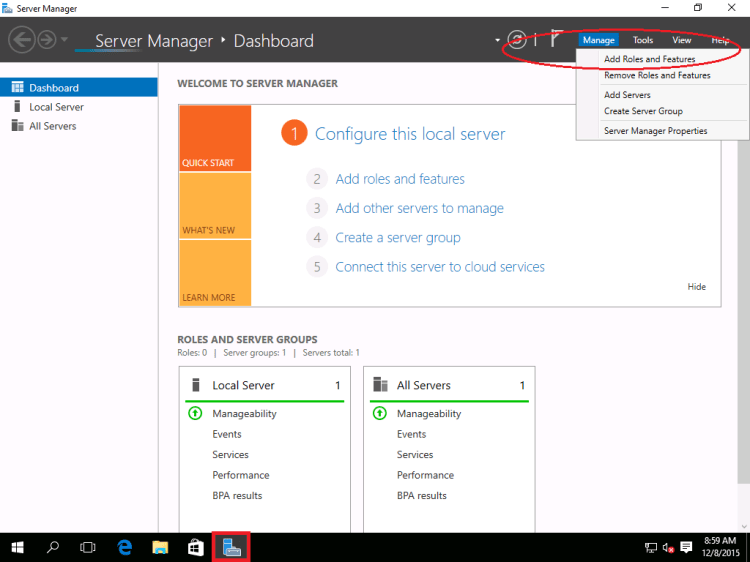
In Server Manager, click Manage then Add Roles and Features.
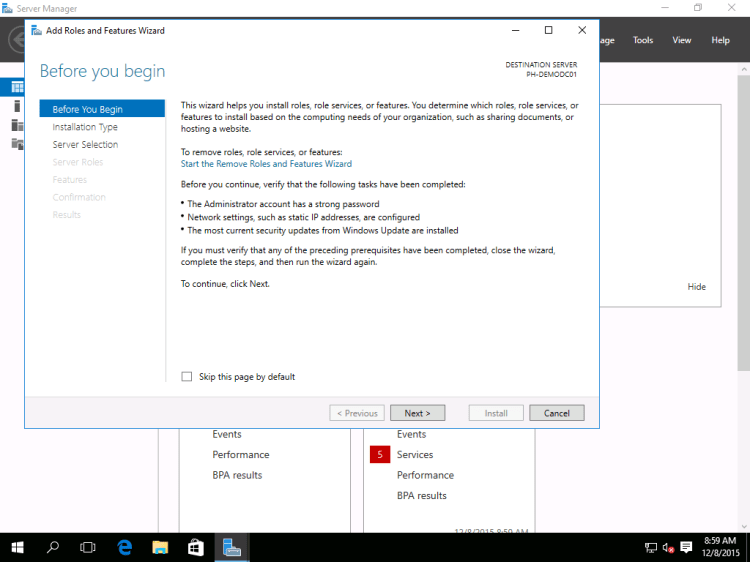
In the Add Roles and Feature Wizard, click Next.
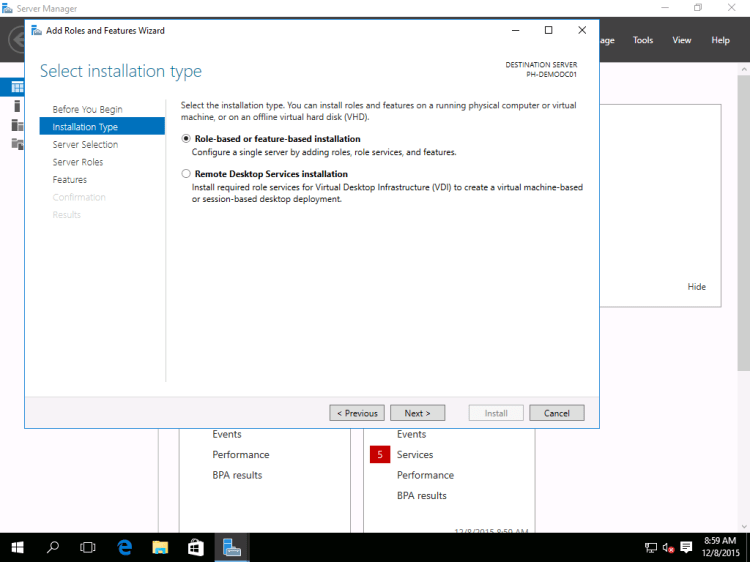
By default, Role-based or feature-based installation is selected, click Next.
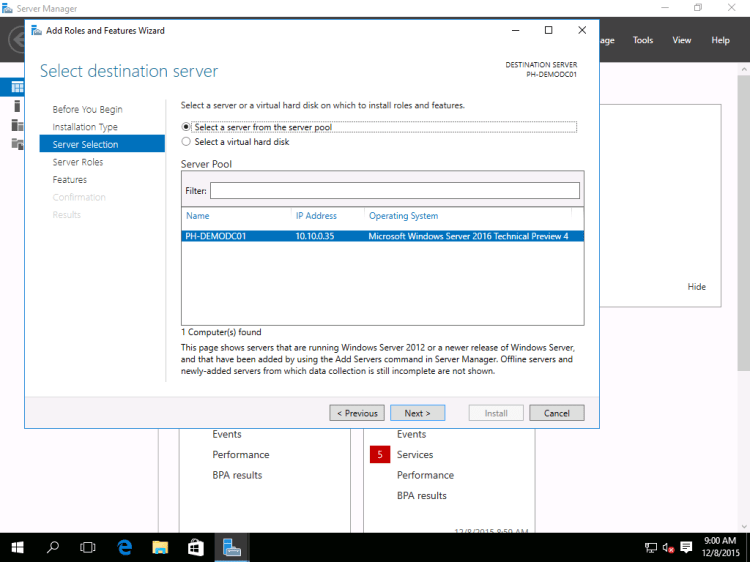
In the Server Selection, select a server from the server pool and click Next.
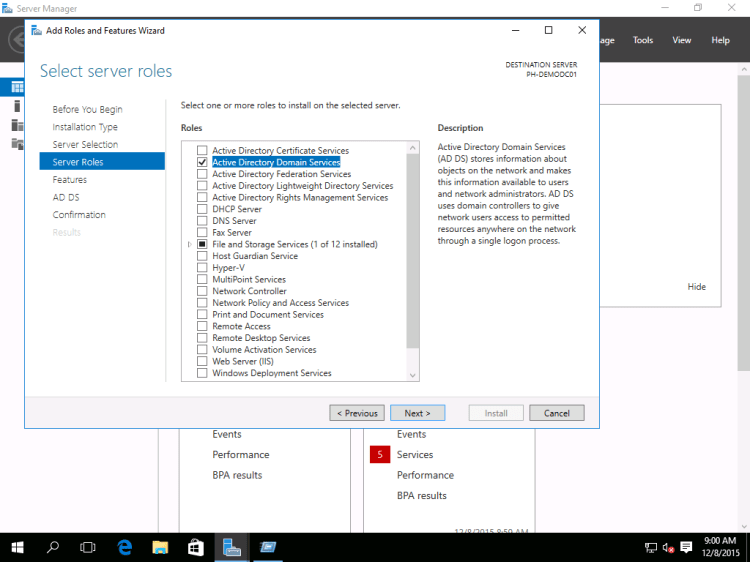
In the Select server roles page, tick on Active Directory Domain Server and click Next.
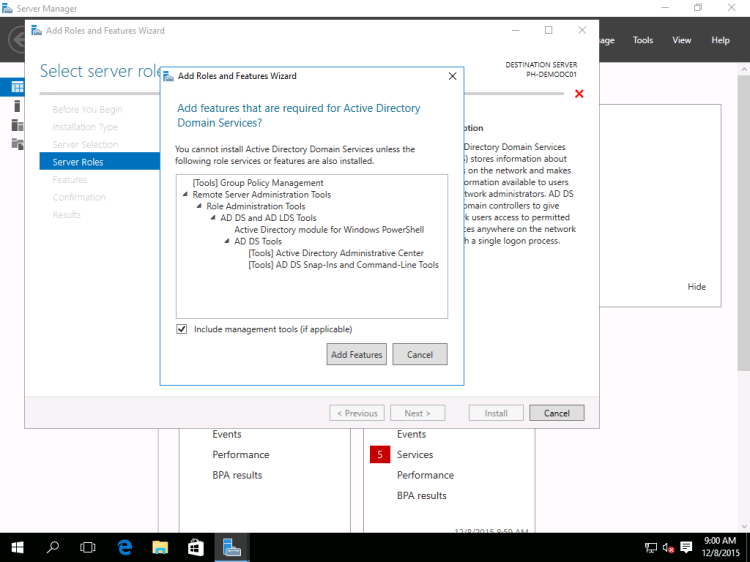
A pop-up will appear asking to Add features that are required for Active Directory Services, click on the Add Features button.
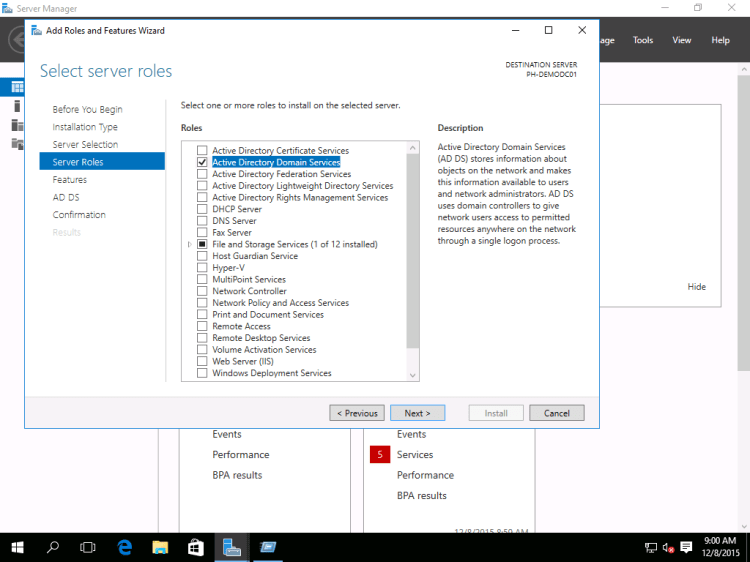
click Next.
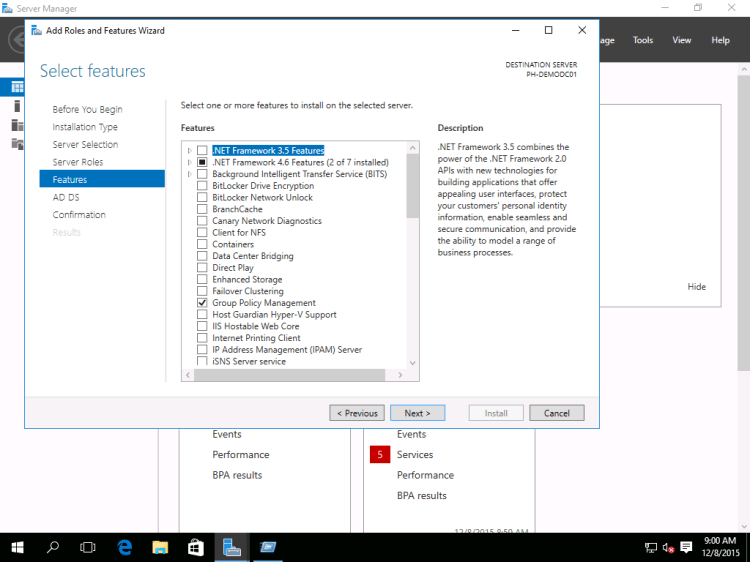
In the Select features page, click Next.
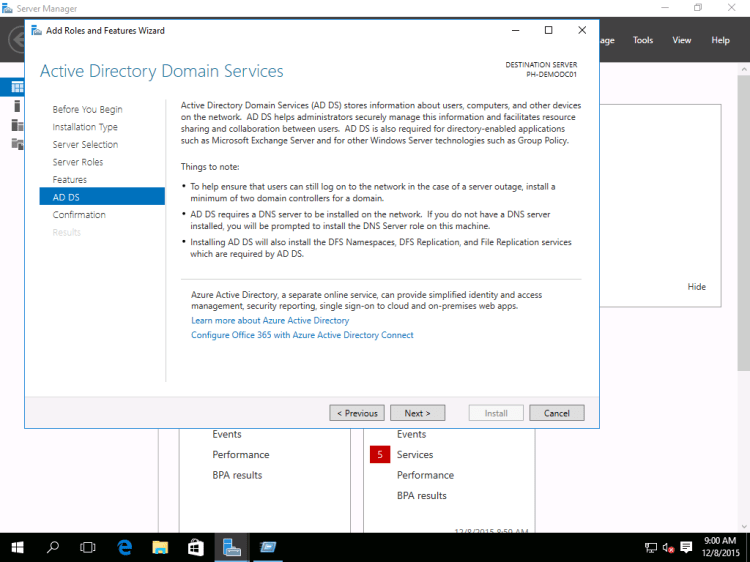
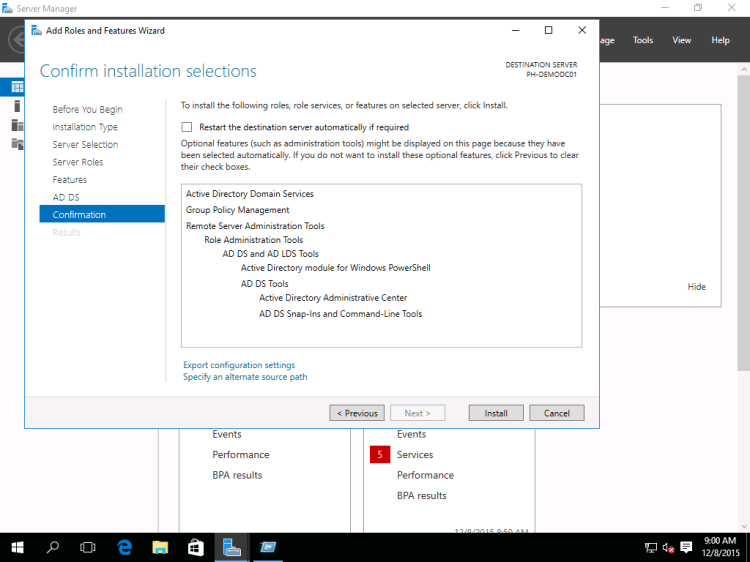
In the Confirm installation selections, click Install.
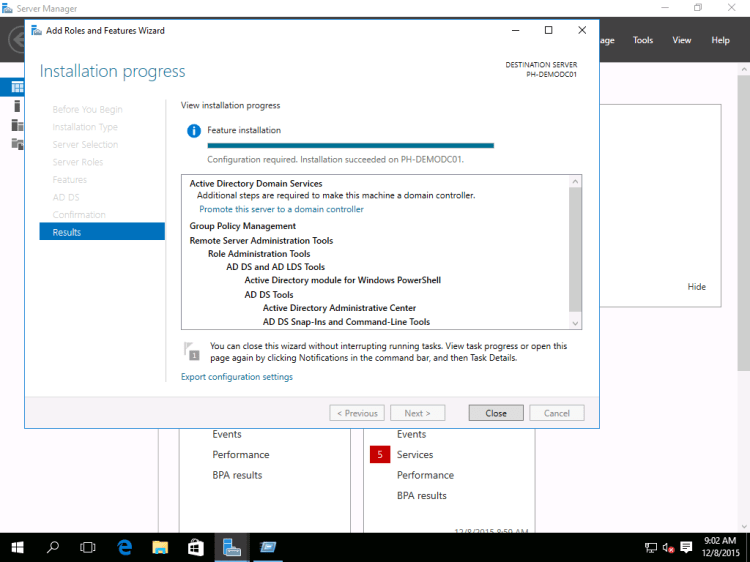
Confirm that the AD DS installation has succeeded and it’s now time promote the server to a Domain Controller.
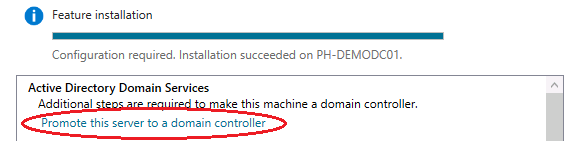
Click on the Promote this server a to domain controller from the Results page of the Add Roles and Features Wizard. Or if you closed the wizard, you can access the Post-deployment Configuration from the Server Manager.
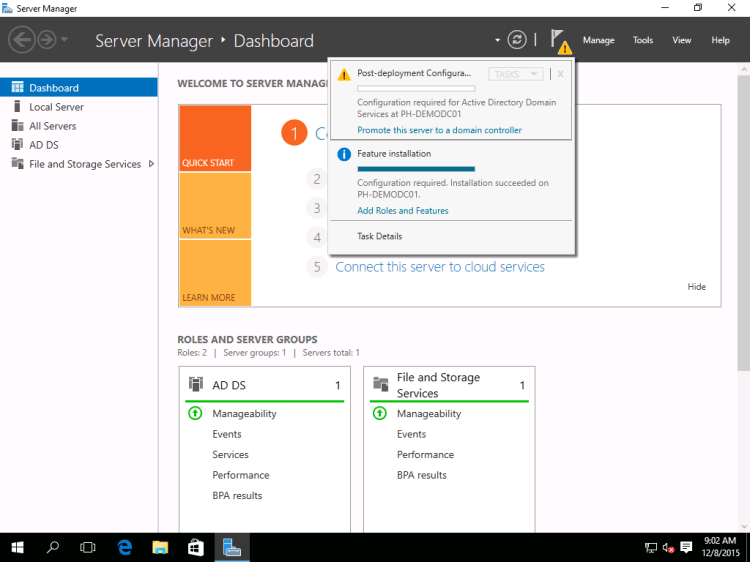
After clicking the Promote this server a to domain controller the Active Directory Domain Services Configuration Wizard will appear.
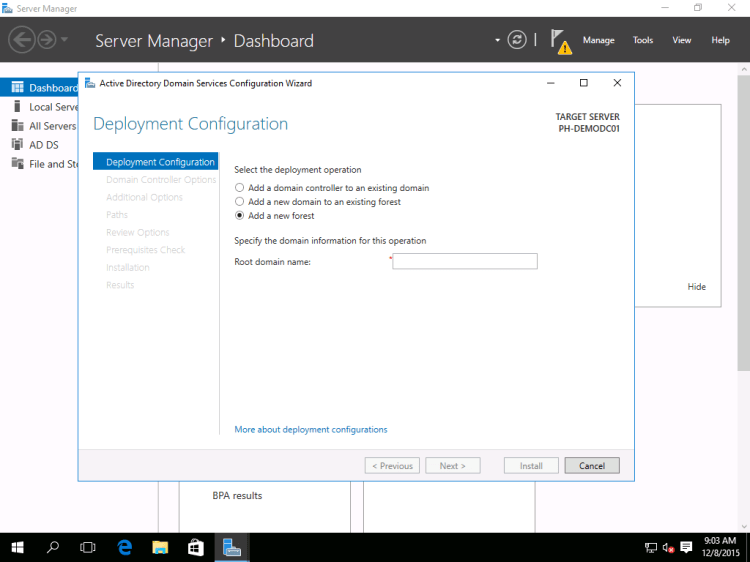
In the Deployment Configuration, select the Add a new forest and type the Root domain name, e.g., phiwug.org
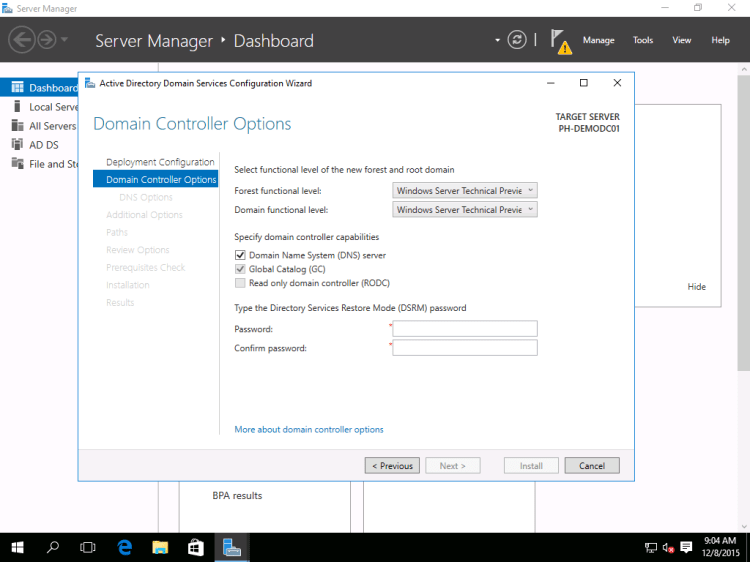
In the Domain Controller Options, select the Forest and Domain functional levels and type a Directory Service Restore Mode (DSRM) password and click Next.
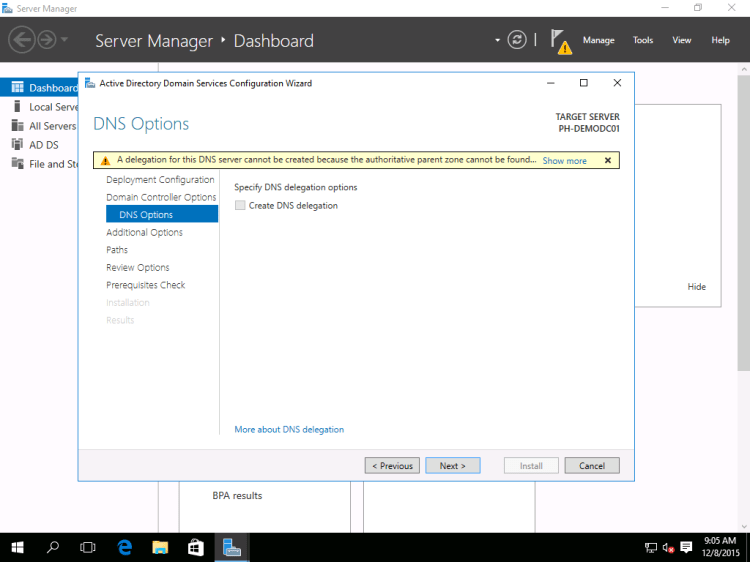
In the DNS Options, click Next.
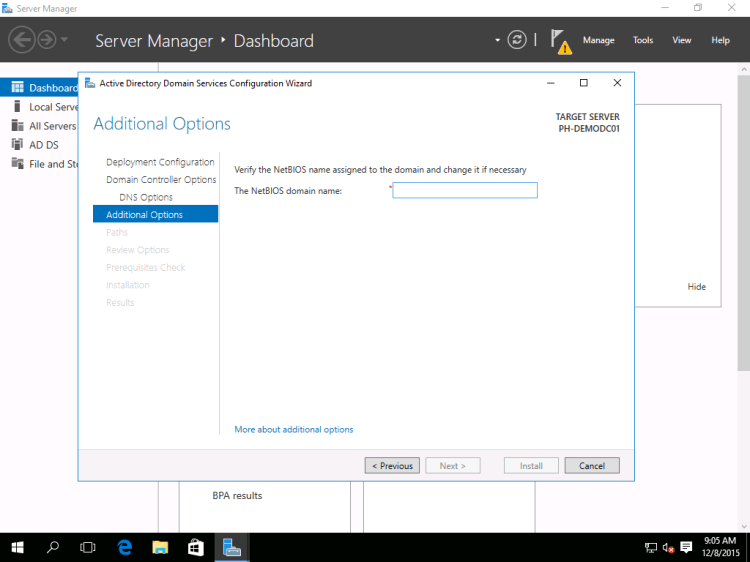
In the Additional Options, a NetBIOS domain will be generated based from the Root domain name that has been entered, otherwise this can be changed.
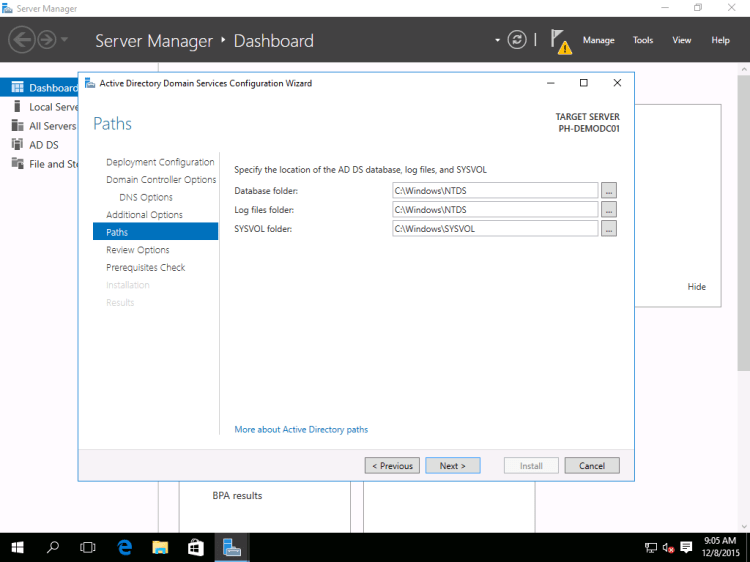
In the Paths’ page leave the default, click Next.
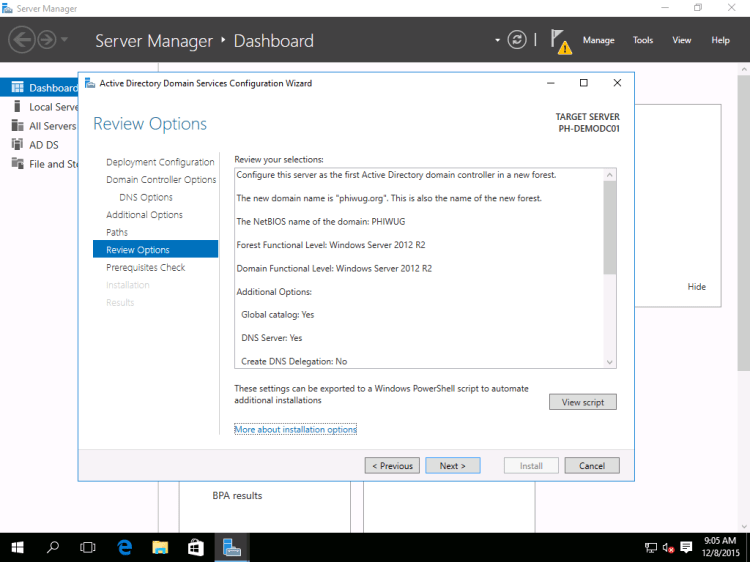
In the Review Option page, run through the selection before proceeding. Click View script to view the PowerShell script the will run behind the UI for the DC promo.
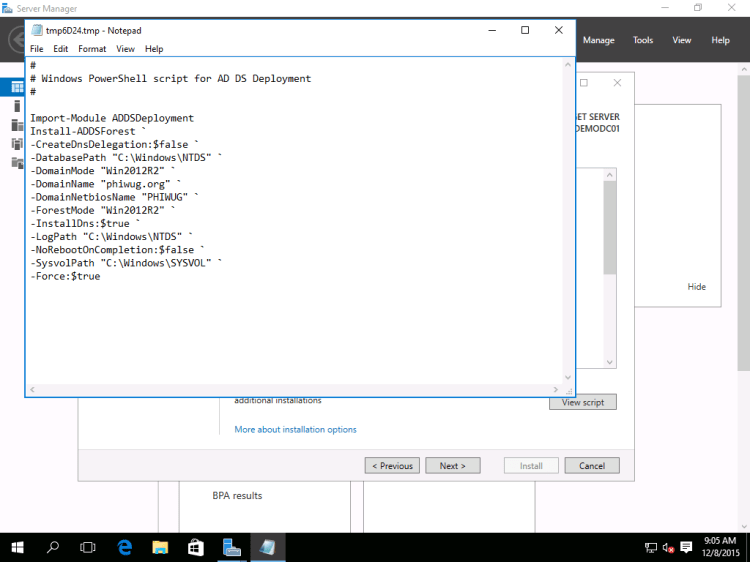
Note the notepad, and click Next.
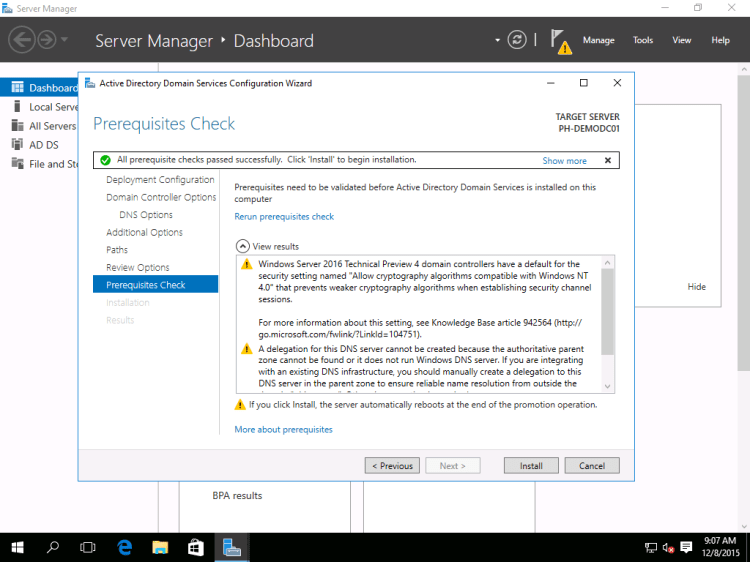
After all prerequisite checks passed successfully, click on the Install button. The server will restart to compete the Active Directory Domain Controller installation.
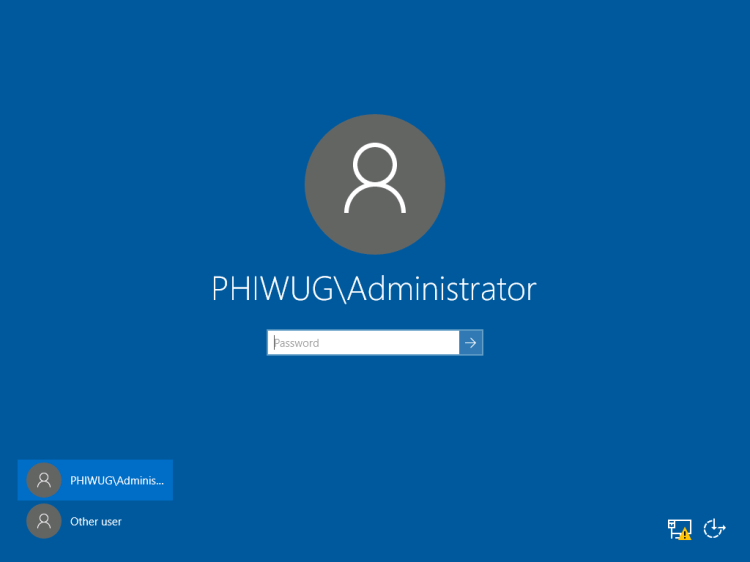



 LABDEMO
Best Method Active Directory Setup Guide on Windows Server 2016 Thanks 🙂
Posted by cracktower | September 24, 2017, 5:10 pm