Setting up the eSIM
Surface Duo supports both physical SIM cards and eSIMs, in my case I applied for an eSIM from Circles.Life, one of the mobile carriers in Singapore, after signing up they provided me with a QR Code just in time for the arrival of my Surface Duo. All I need to do is connect the device to my Wi-Fi network and it’s ready to be setup.
1. Go to Settings > Network & Internet, then tap on Mobile network.
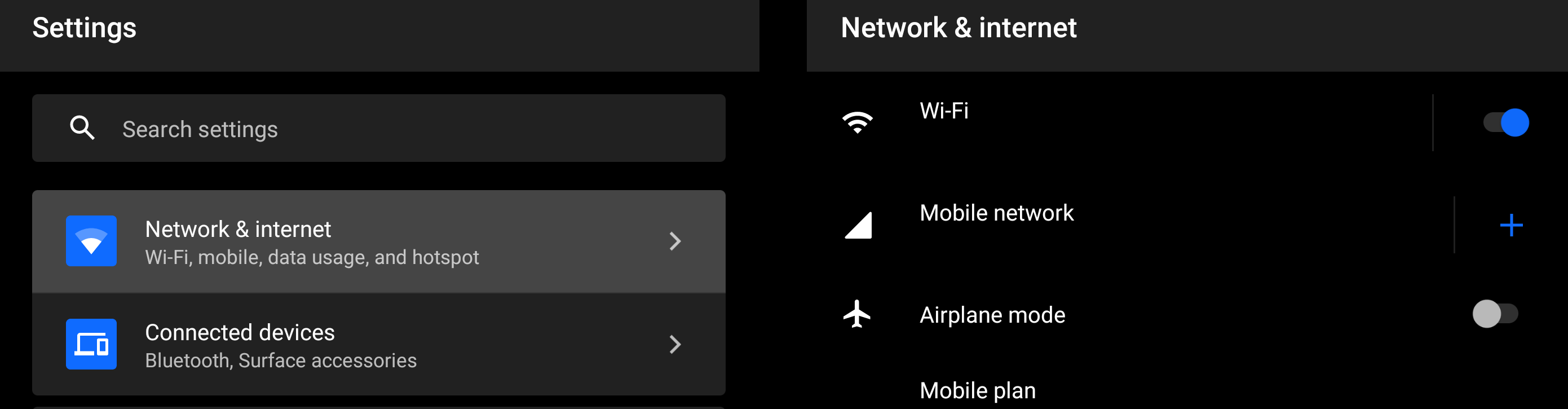
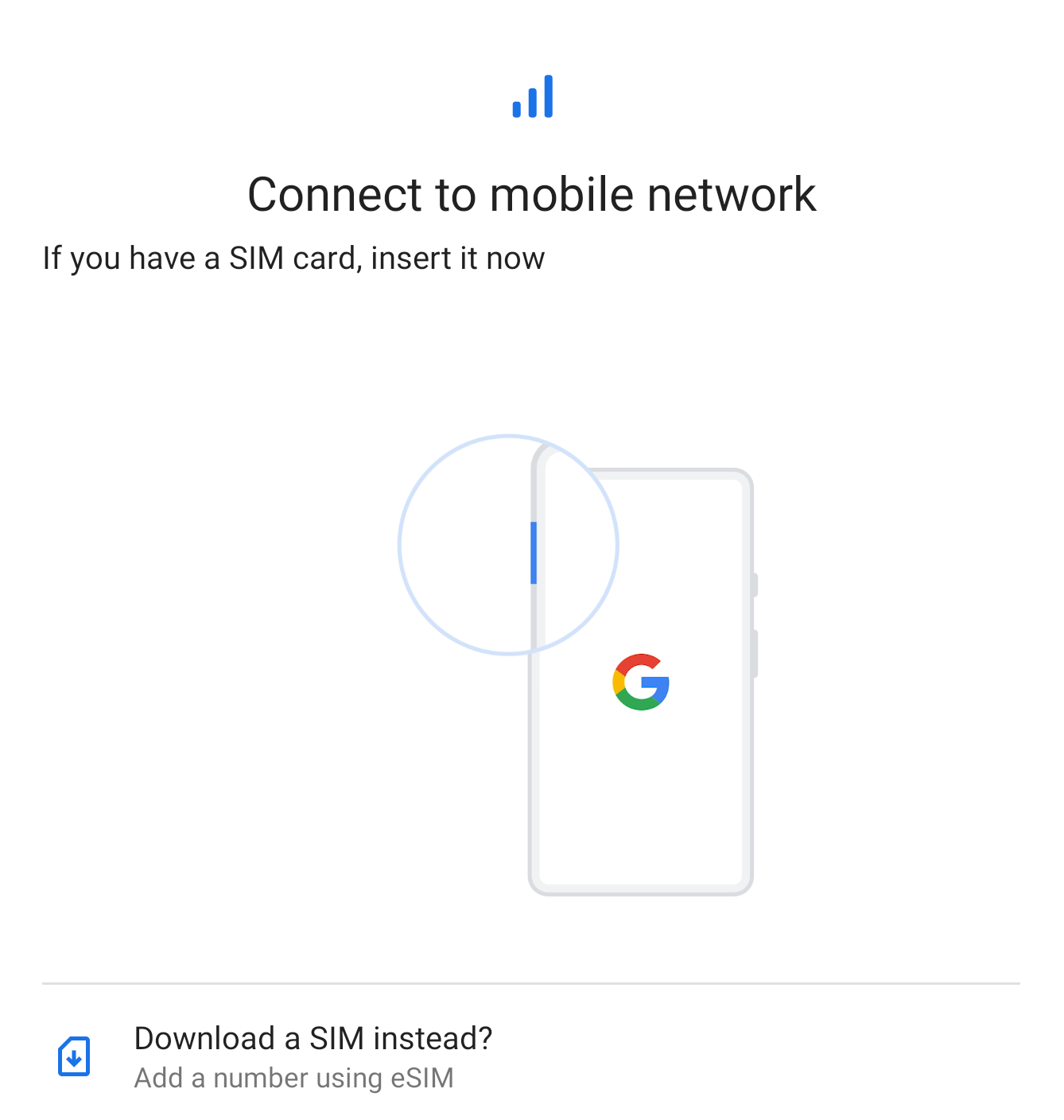
2. At the Connect to mobile network, tap at the Download a SIM instead?.
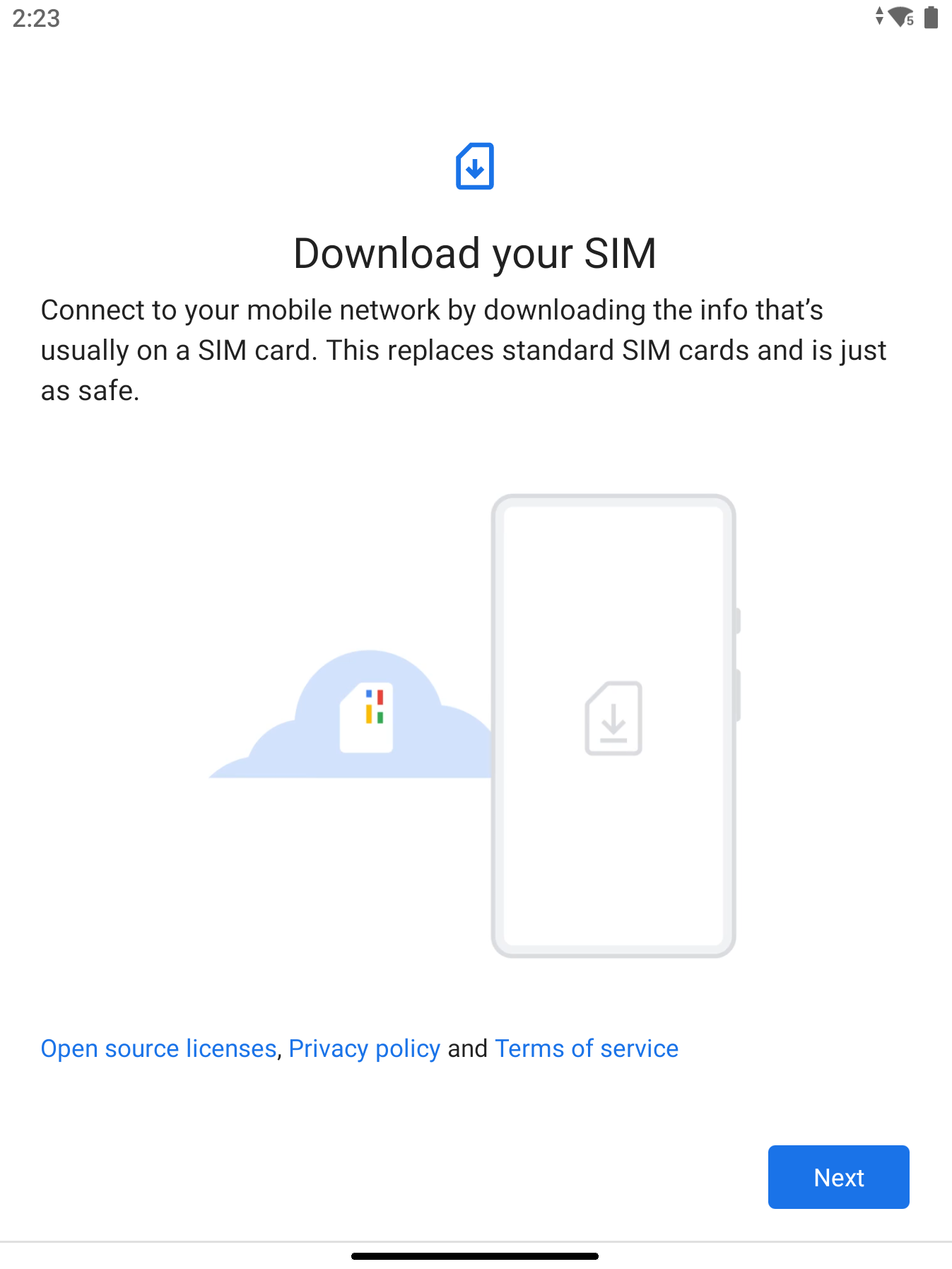
3. At the Download your SIM screen, tap Next.
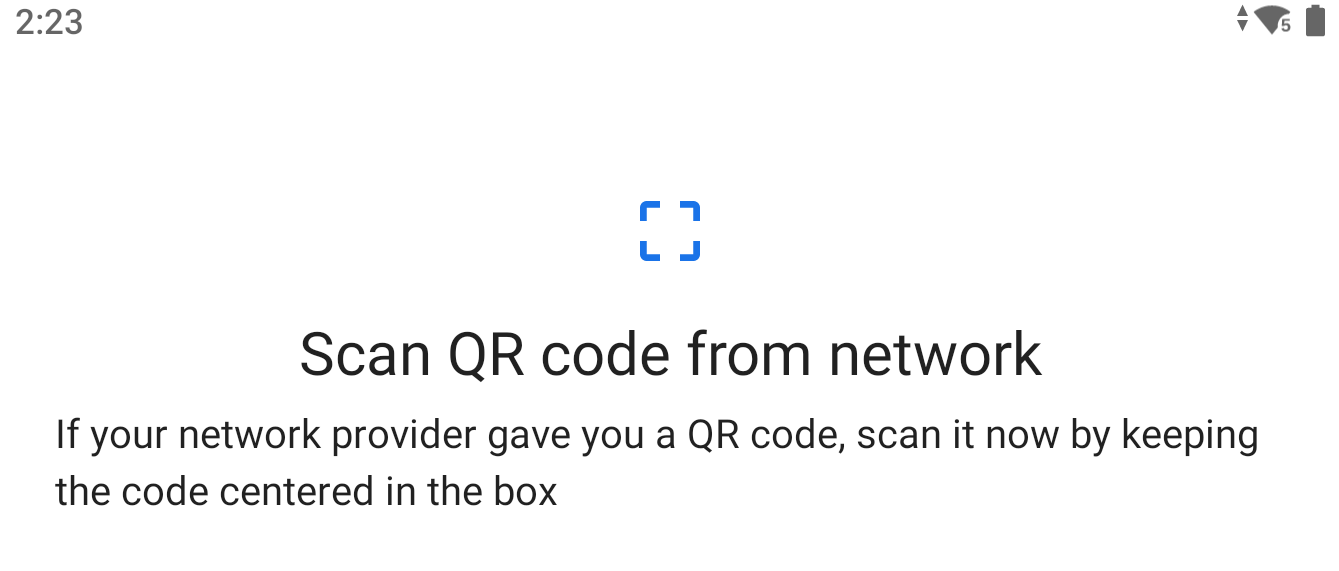
4. On the Scan the QR code from network, I scanned the QR code provided by my carrier.
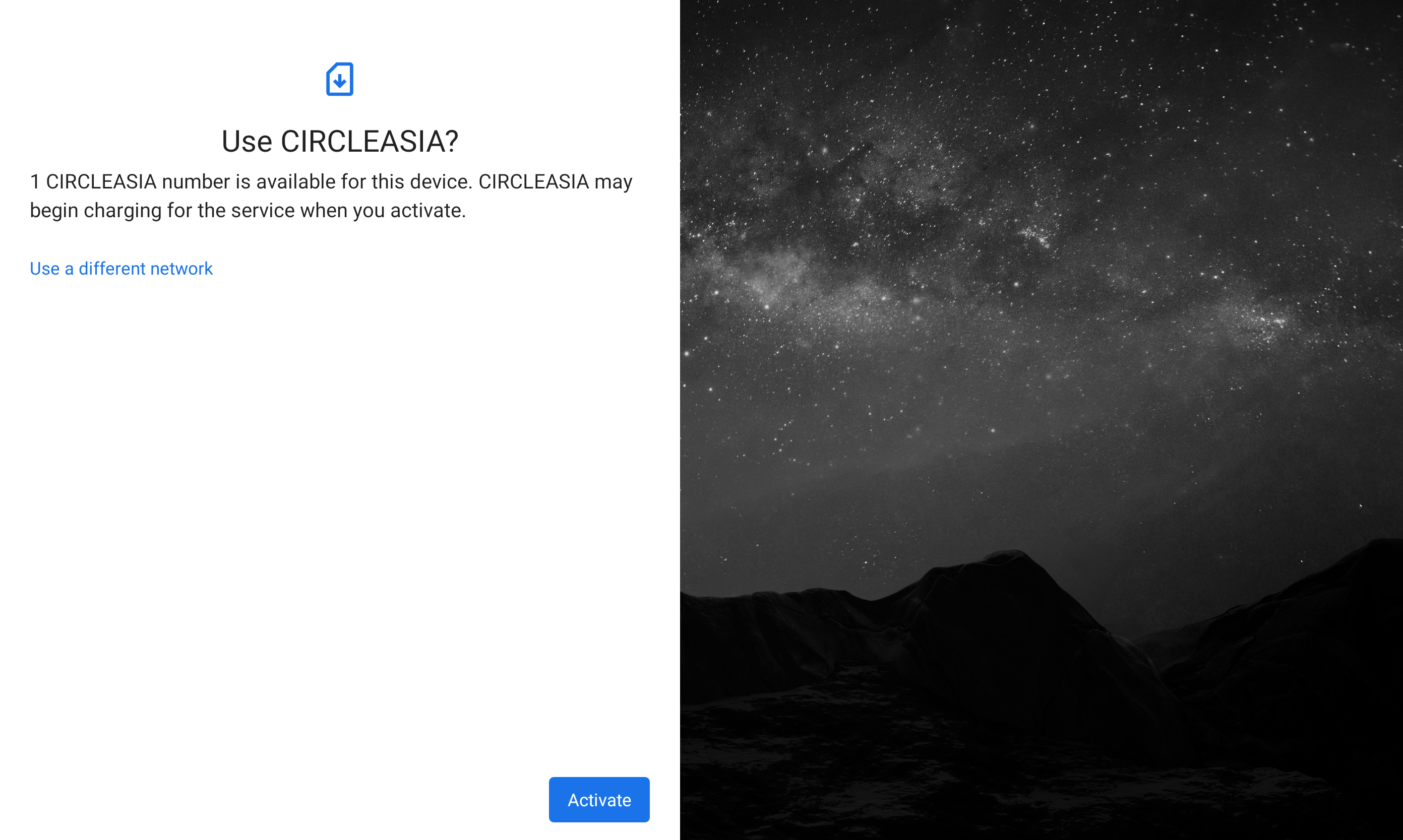
5. After I scanned the QR code, I was prompted with the screen below to confirm the use of my carrier, I then tapped on the Activate button to proceed.
6. The next screen confirmed that my carrier is active and my number is ready to use. I tapped Done to close the screen and complete the eSIM setup.
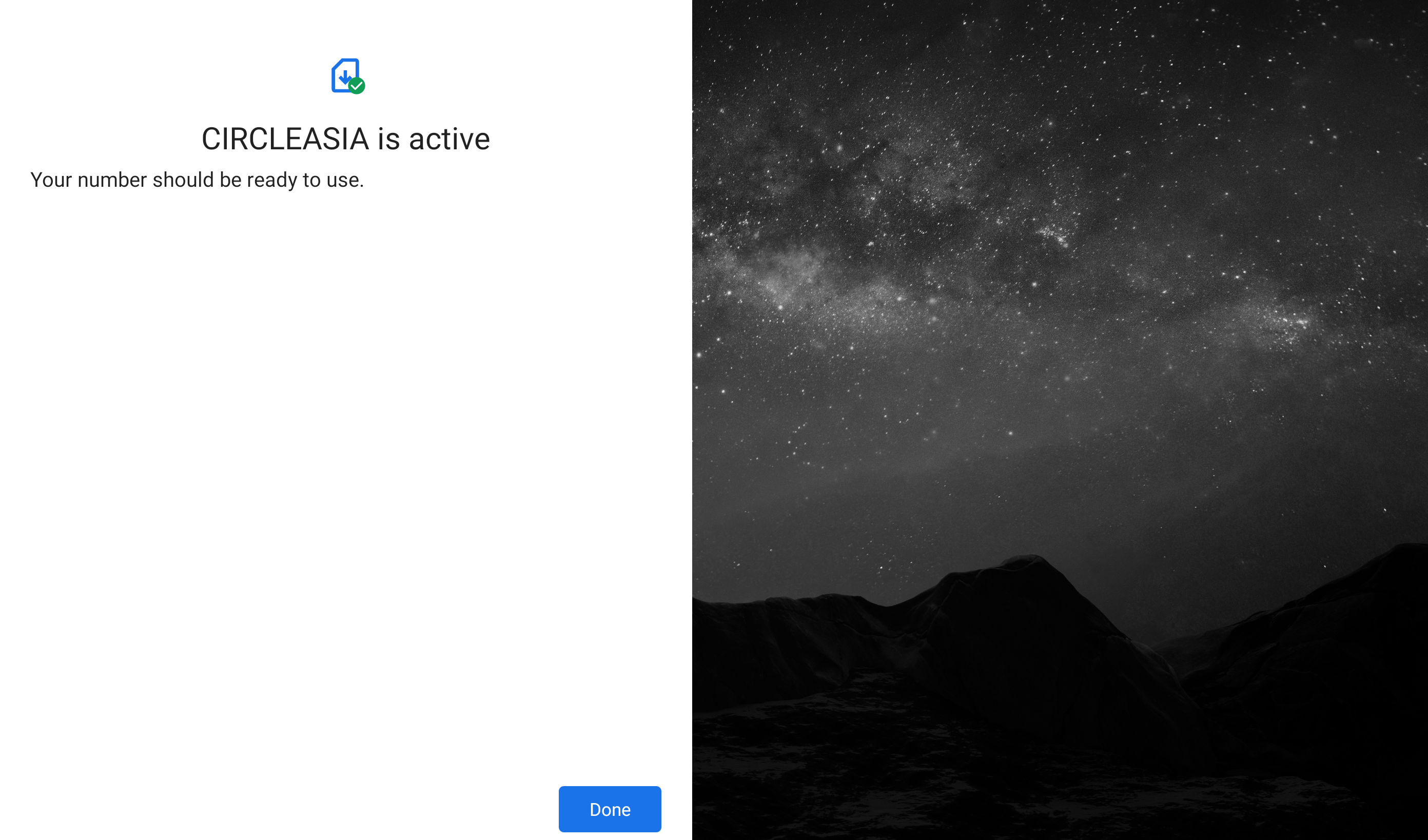
eSIM setup is complete.



 LABDEMO
Discussion
No comments yet.