
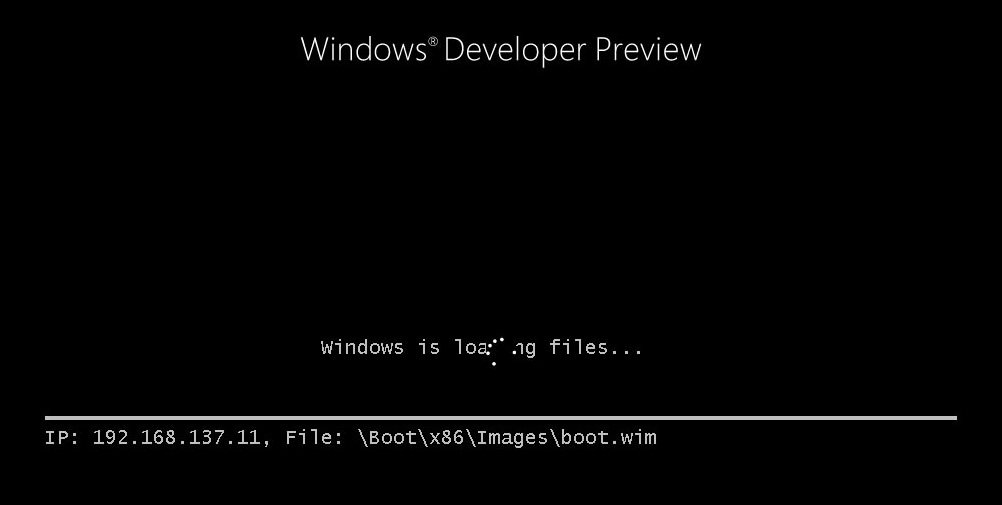
Here’s how an attended installation of Windows Developer Preview via Windows Deployment Services looks like (too excited and opted not to create an answer file)
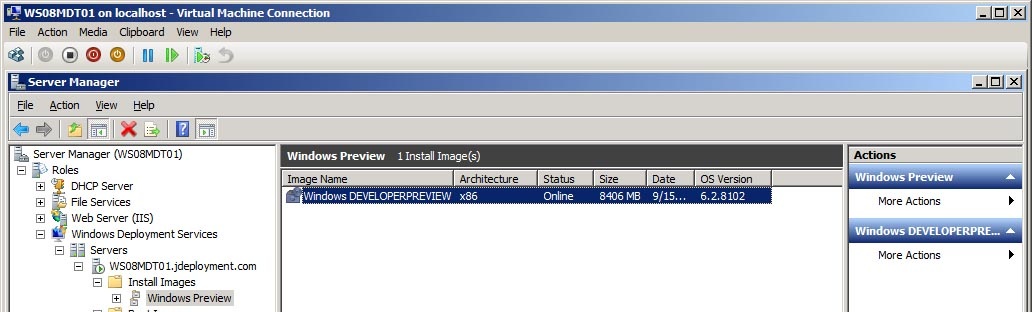
I have setup one of my member server’s WDS Role (link here: on how to setup a WDS role) and added the Install.wim file of Windows 8 Developer Preview.
Here are the screen shots of the installation after creating a new Virtual Machine
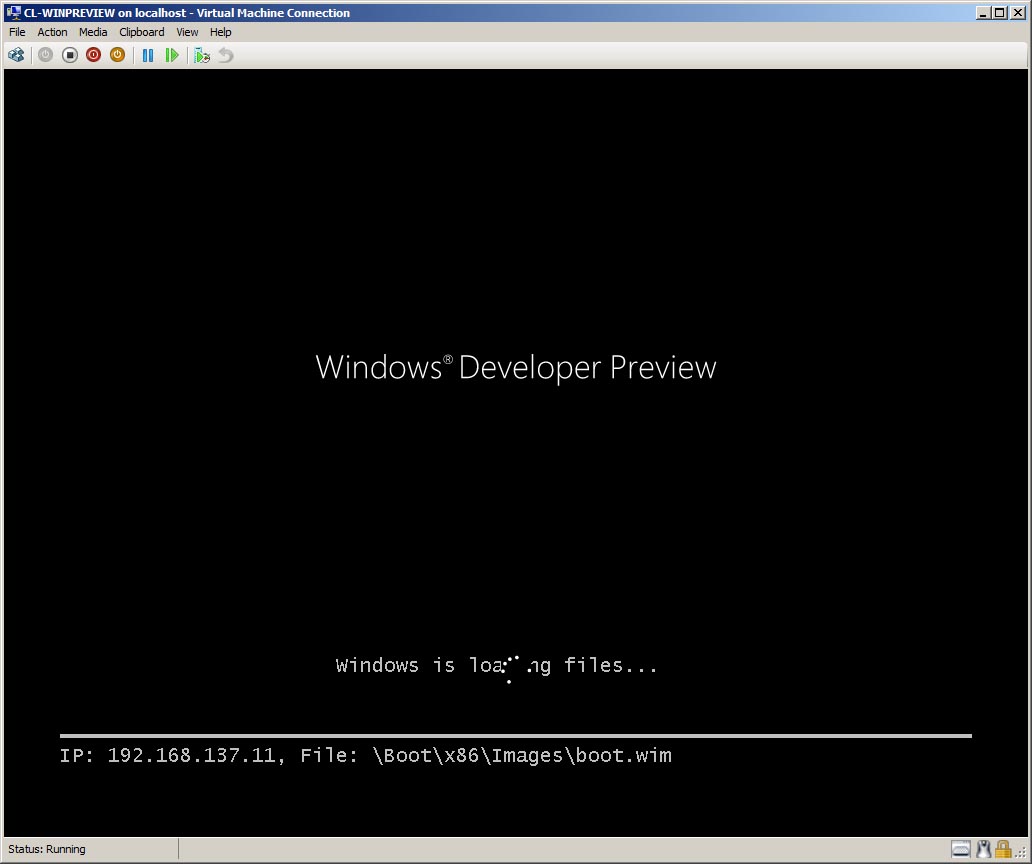 The client machine is loading the files from the wim
 First phase: Collecting of information
After the Setup initiates, the WDS screen will appear and will ask for your Locale and Keyboard and input method
 After clicking the Next button WDS will ask for a domain user name and password
 In the next screen under Operating system, the Windows DEVELOPERPREVIEW is already selected. Click Next to continue.
In the following screen you will be asked “Where do you want to install Windows?”

You have the option to allocate partition or simply click next to proceed.
 Windows will automatically install once the session has initiated.
 Second phase: Installing Windows 8
Once the Expanding Windows files, Installing features and Installing drivers are done,
 Windows will restart.

 After the restart, you’ll get the Windows Developer Preview screen while updating the registry settings

 Getting devices ready
 After Getting system ready finishes, Windows will restart once more
 Skip the Product key page as this will be automatically be activated after the setup is completed (provided you are connected to the Internet)
 Tick the “I accept the license terms for using Windows” box and click the Accept button to continue
 Provide a PC name and click Next
 On the Settings page, you may select to use the express or customized settings
 Provide a Windows Live email address then click Next, on the next page it will ask for an Email address and Password then click next to proceed and finalized your settings

 After the Welcome screen appears, you will now be directed to the Windows Metro UI.
 Desktop or the Control Panel is accessible when you click on their tiles.

As mentioned earlier, Windows will be automatically activated. Once you log off Windows, you’ll get a neat background shown below.

That’s all for now… again the Windows Developer Preview is available at http://msdn.microsoft.com/en-us/windows/apps/br229516



Leave a Reply to petelongCancel reply