

Installing Windows Automated Installation Kit in Windows 8 Server Developer Preview
As mentioned in my previous post, .NET 3.5.1 is required before installing Windows AIK in Windows 8 Server.
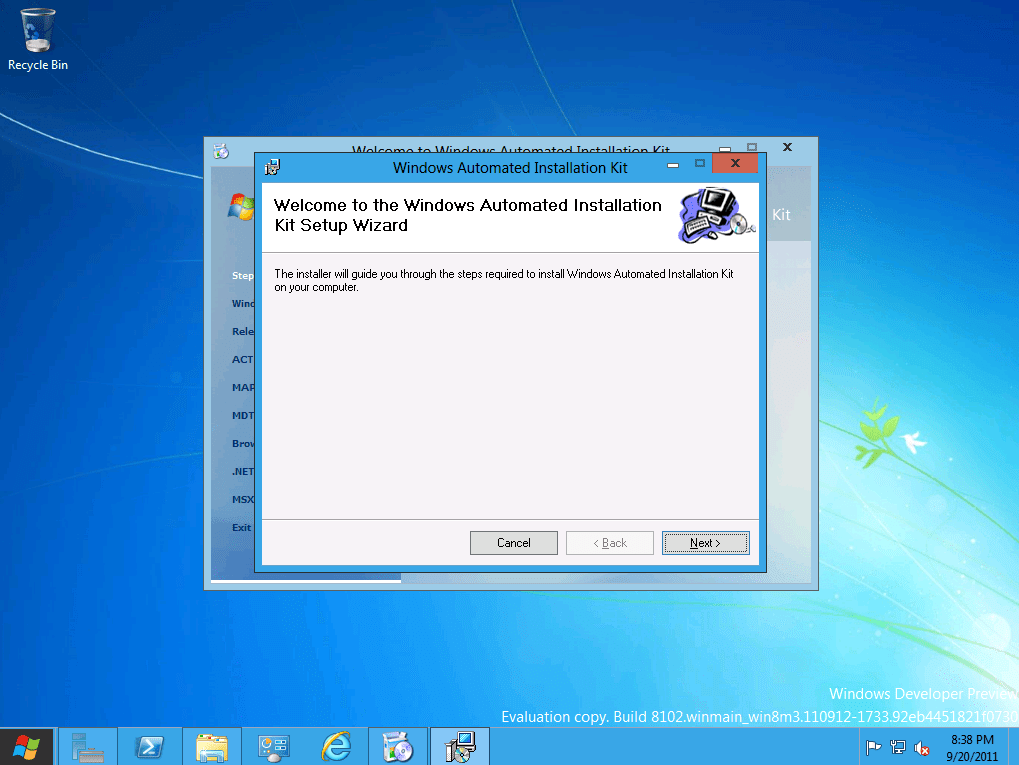
In the VM insert the WAIK ISO file and launch the installer.
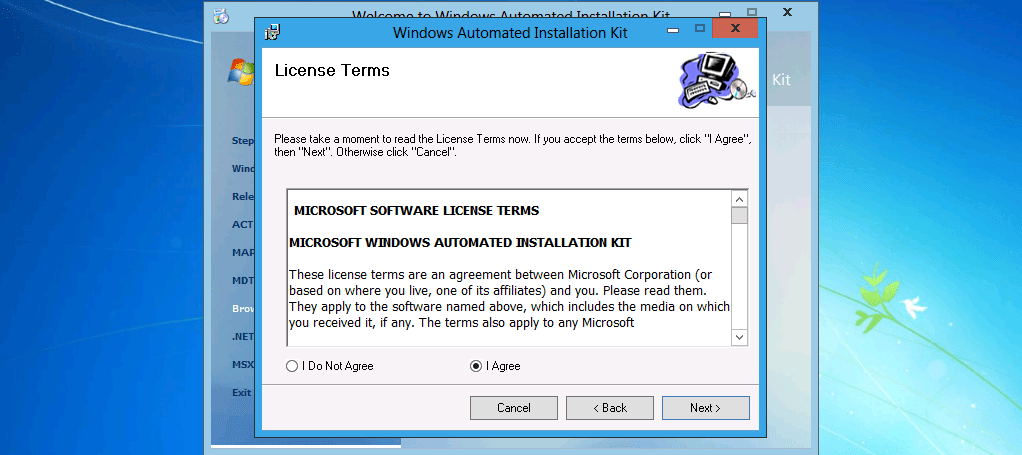
Read the License Terms and select I Agree and click Next to continue.
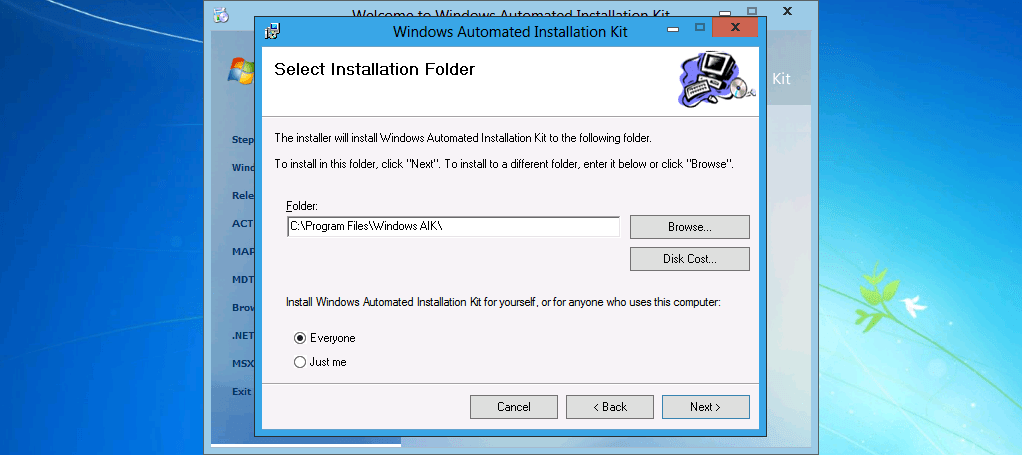
Select an Installation Folder and choose whether to install WAIK for yourself or for everyone who’s using the computer then click Next.
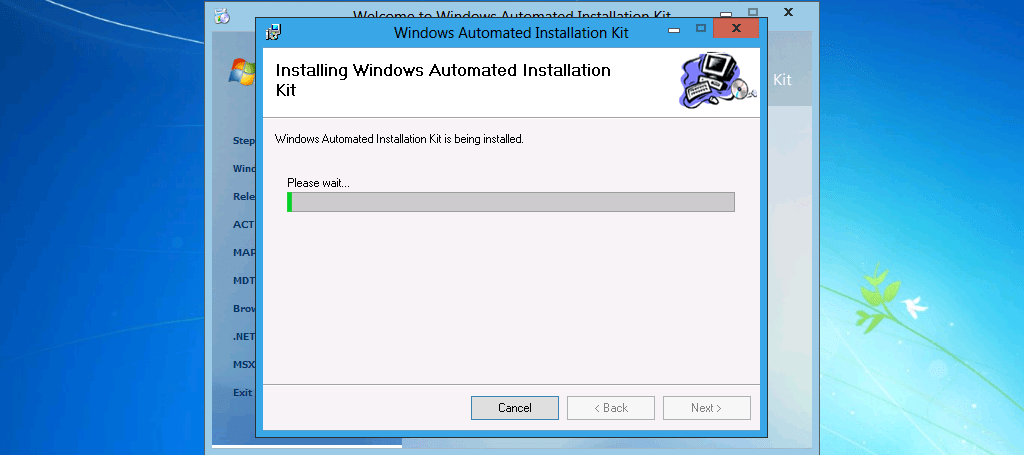
It won’t take long for WAIK to be installed in Windows 8 Server.
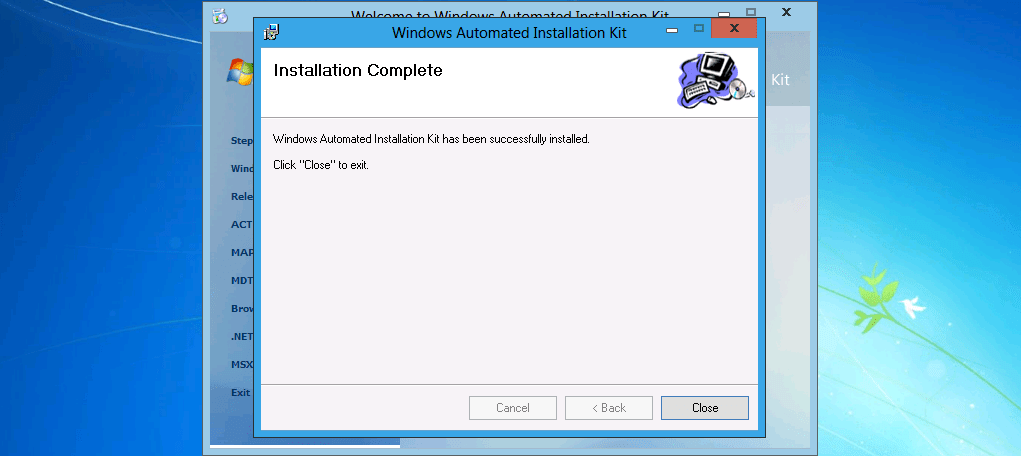
Click Close once installation is complete.
Installing Microsoft Deployment Toolkit 2012 Beta in Windows 8 Server Developer Preview
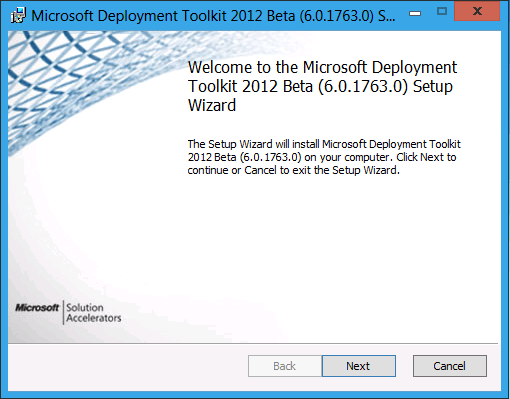
Launch the 64 bit binaries of MDT 2012, MicrosoftDeploymentToolkit2012_x64 (only the x64 can be installed in Windows 8 Server).
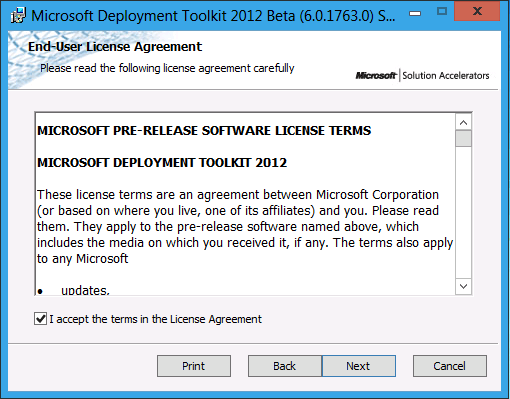 Accept the End-User License Agreement and click Next.
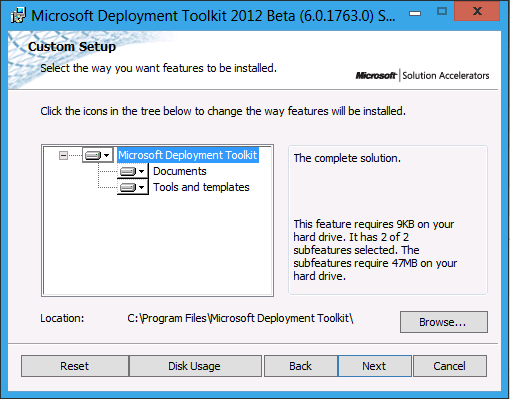
In Custom Setup screen, click Next to leave the default settings.
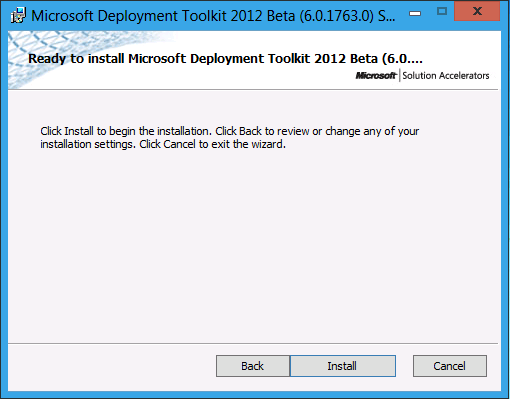
Click the Install button to initiate the MDT 2012 Beta installation.
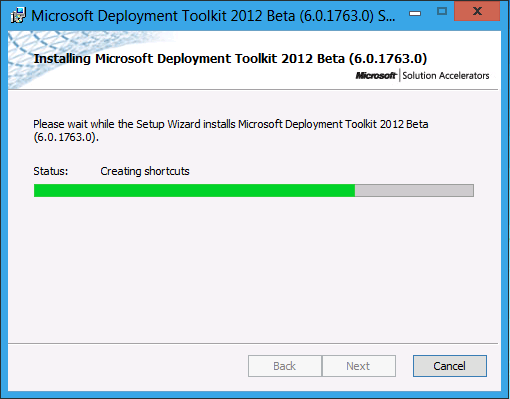
Progress will be shown during the installation.
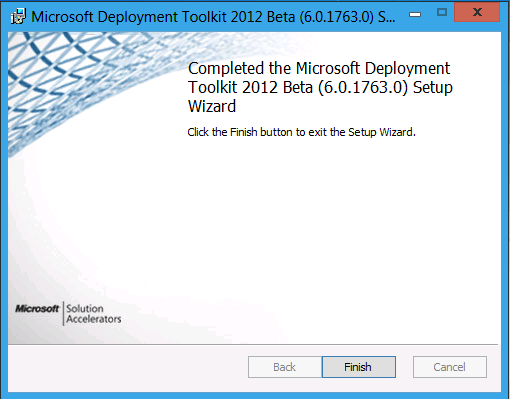
Click the Finish button to close the setup wizard.
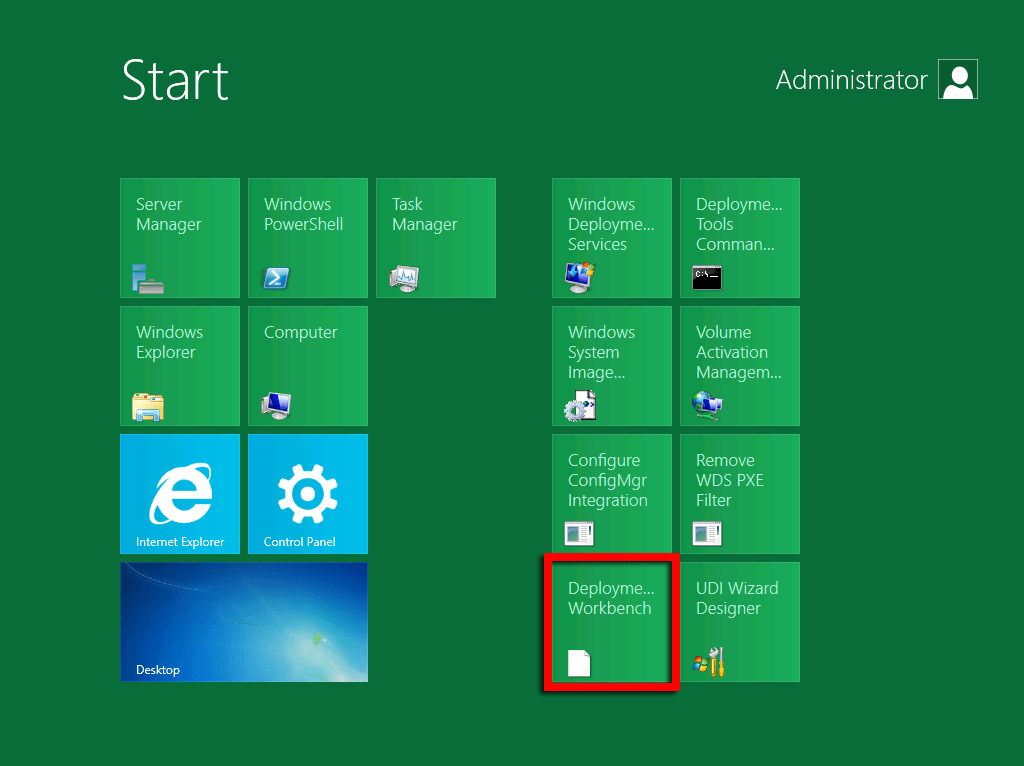
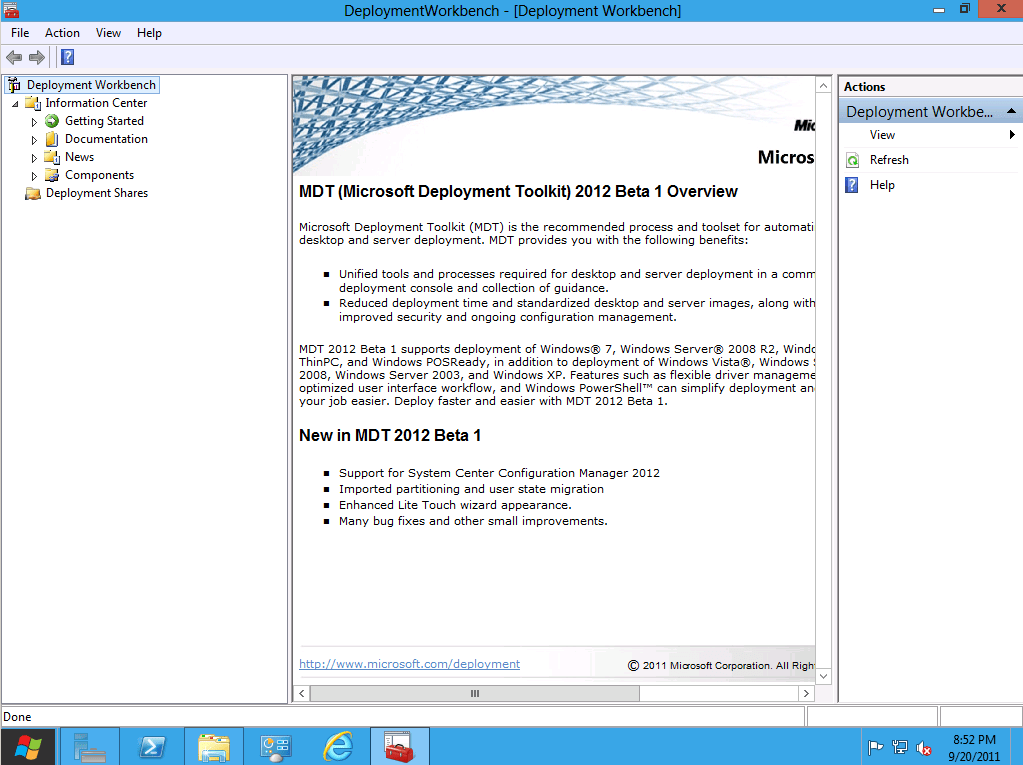
You may now launch the Deployment Workbench and work with MDT 2012 beta.




Leave a Reply